Applications
An Application is the profile msg.ZenTestAI keeps for one web application under test. It is how you tell the platform "for this application, behave like this" — once, in one place — instead of repeating the same configuration in every test step.
An application profile carries three kinds of information:
- Defaults for how tests behave against the application — timeouts, login handling, browser options, AI instructions and proxy routing (the Settings tab).
- Knowledge the AI assistants should have about the application — a small library of markdown articles maintained per application (the Knowledge Base tab, see Knowledge Base).
- A map of the application's screens and the flows between them, produced by an AI scan (the Application Map tab, see Application Map).
Earlier versions called this area Application Settings. The configuration that used to live on six separate tabs now sits together under the Settings tab, and two AI-driven tabs (Knowledge Base and Application Map) were added alongside it.
The list page
Open the list from Settings → Application in the sidebar. It shows every application configured for the tenant. The single Application column shows the title (in bold) with the host name beneath it; the search box filters by both. Use Create application to add a new profile, and the row actions to copy an existing one as a starting point or delete it.
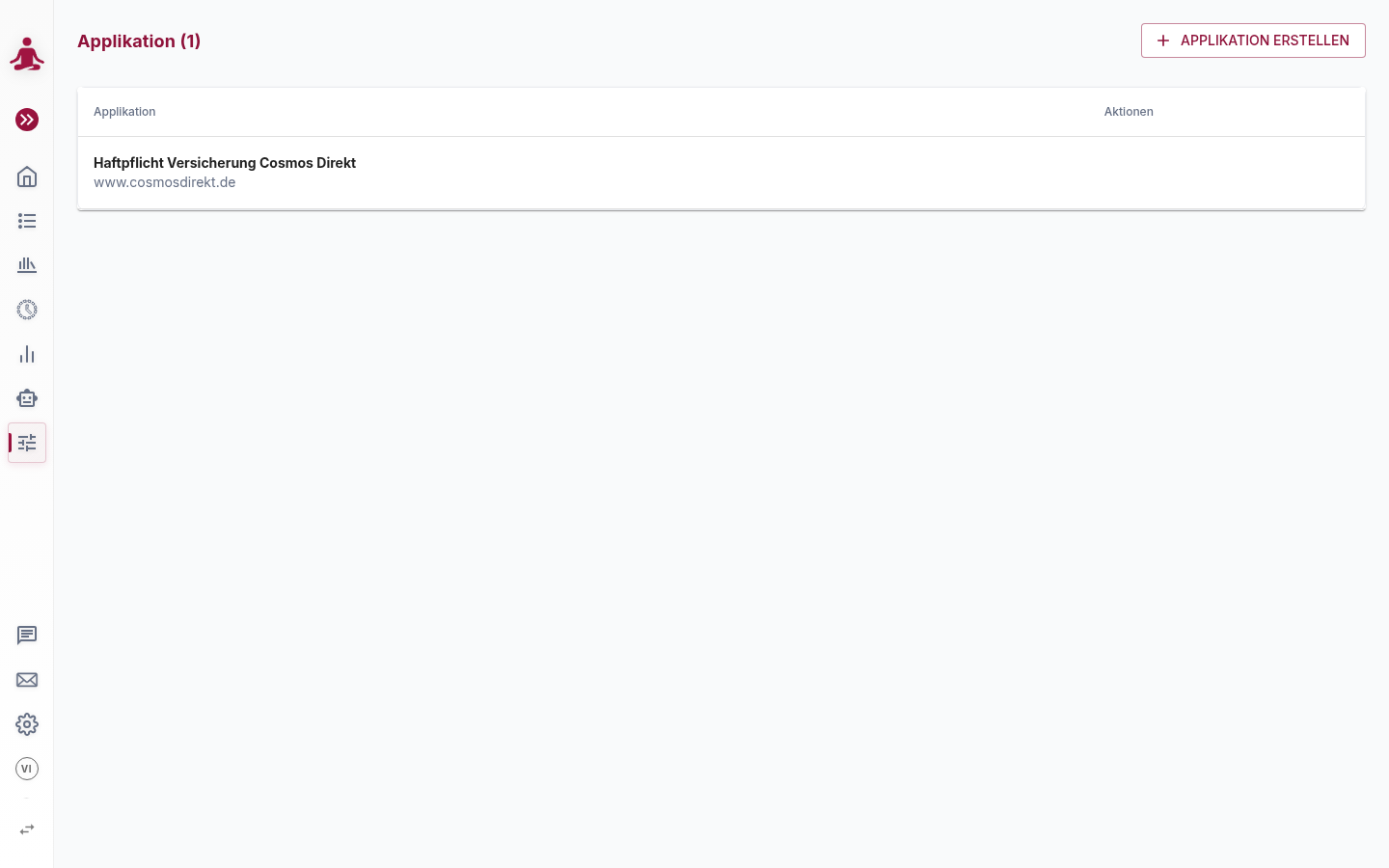
How an application is matched to a URL
Each profile is matched by host plus an optional path. When several profiles could apply, the
one with the most specific path prefix wins. For example, with two profiles www.wikipedia.de and
www.wikipedia.de/articles:
https://www.wikipedia.de/automationmatcheswww.wikipedia.de,https://www.wikipedia.de/articlesmatcheswww.wikipedia.de/articles.
The matching rule and the host / path are configured on the General tab under Test assignment.
The detail view
Opening a profile lands on a tabbed editor. The header carries the application title and three actions:
| Action | What it does |
|---|---|
| Scan history | Lists the AI scans that produced or updated this application's map. |
| Used by | Lists every test that currently uses this profile — see Usage References. |
| Create test for this application | Starts a new test pre-filled with this application's default URL and user. |
Below the header are four tabs:
| Tab | What you do here |
|---|---|
| General | Identify the application and decide which URLs it applies to — see General. |
| Knowledge Base | Maintain markdown articles the AI assistants use as context — see Knowledge Base. |
| Application Map | View and refresh the AI-generated map of the application's screens — see Application Map. |
| Settings | Configure default test behaviour, grouped into five cards (below). |
The Knowledge Base and Application Map tabs only appear when AI Assistants are enabled for the tenant. If you don't see them, an administrator first has to switch on the assistants — see Enabling AI features.
The Settings tab
The Settings tab groups all default-behaviour configuration into five cards. Each card shows a status chip (for example Customized, Configured, Defaults or Off) so you can see at a glance which areas have been changed from their defaults.
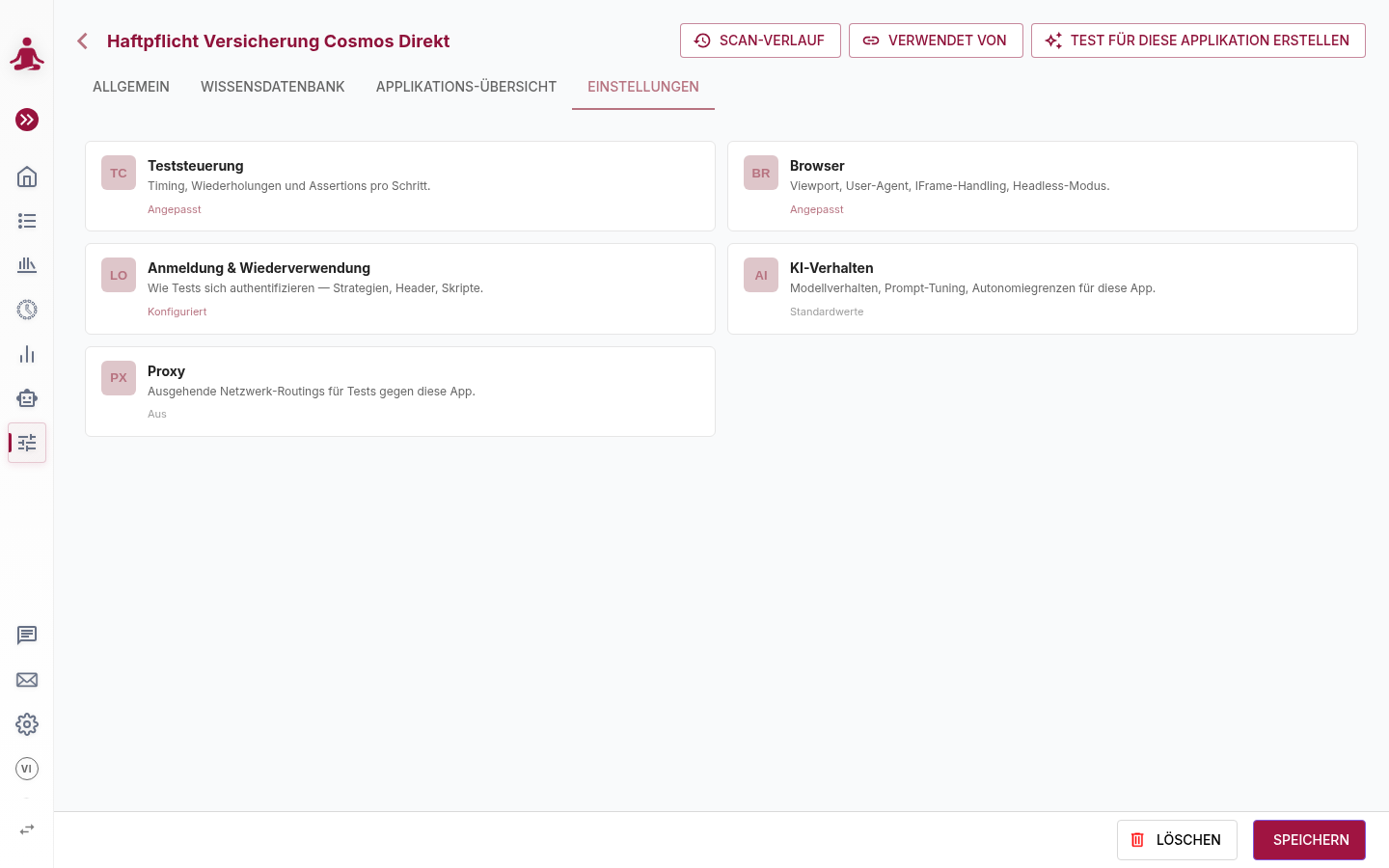
| Card | What you configure | Page |
|---|---|---|
| Test-Control | Default action behaviour: waiting, confirming inputs, ads, iframes, virtual cursor. | Test-Control |
| Browser | Browser-level behaviour and page analysis (DOM/CSS ignores, animations, fonts). | Browser |
| Login & Reuse | Authentication detection, session reuse, logout script, extra HTTP headers. | Login |
| AI behaviour | Additional instructions for each of the AI agents that interpret your steps. | AI behaviour |
| Proxy | Outbound network routing, with optional per-domain overrides. | Proxy |
Click a card to open its detail view, make your changes, and Save. Saving the application record and saving a Knowledge Base article are separate actions — the footer Save persists the application; the Knowledge Base editor has its own Save.