Basics & Navigation
About this documentation
This part of the documentation is used as a reference and explains all details about the msg.ZenTestAI platform. For a more video-based introduction, watch the Videos.
Basics
msg.ZenTestAI is a web-based application for creating, managing and executing test cases. The main way to move around the app is the left-hand sidebar, which is always visible and split into a top area (the main navigation) and a bottom area (system actions and your profile).
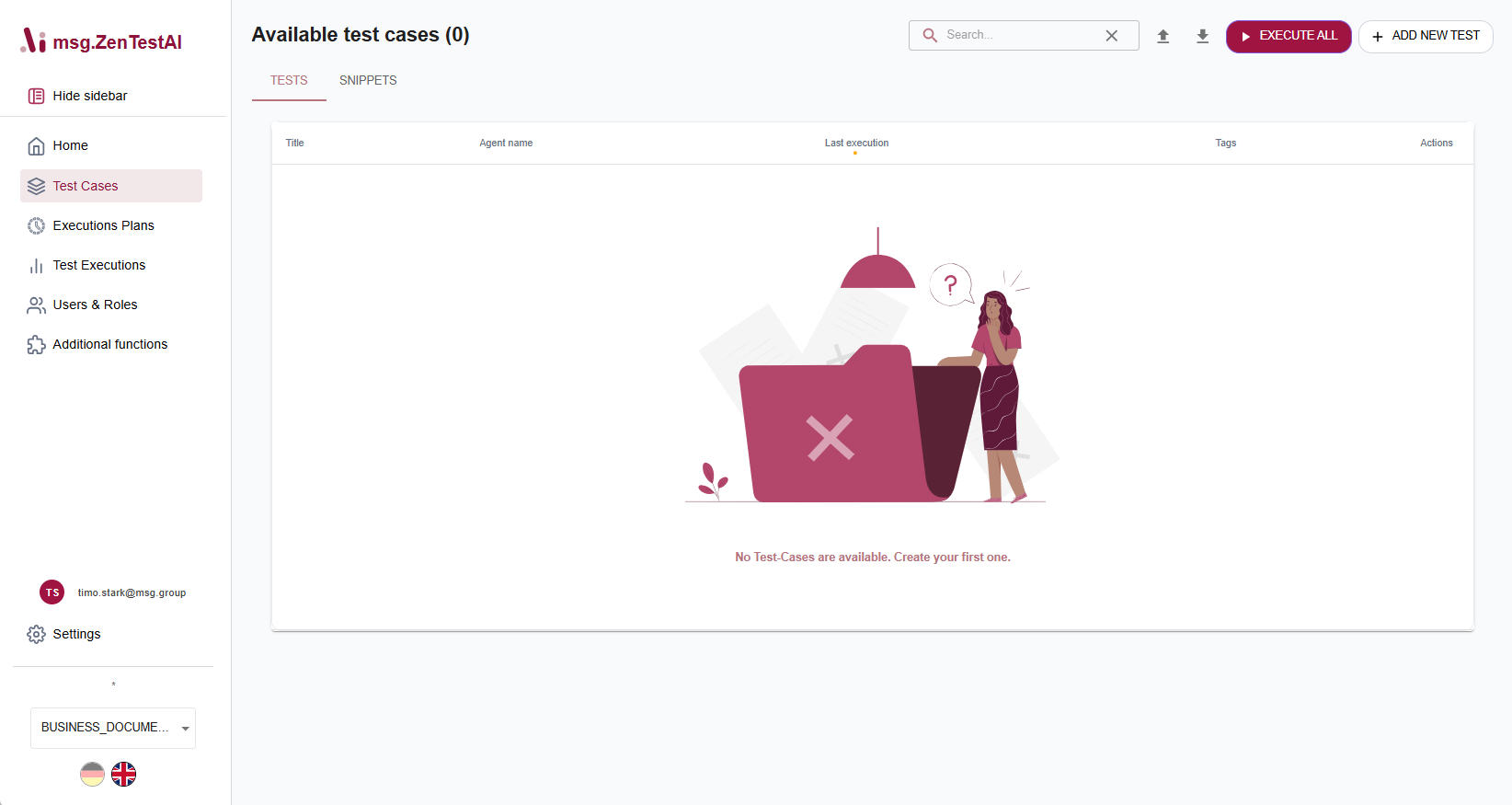
You can collapse the sidebar to icon-only mode using the chevron button at the top. The collapsed state is remembered per user and is also applied automatically on smaller viewports.
Main navigation (top of the sidebar)
| Entry | What you do there |
|---|---|
| Home | The dashboard. Quick overview of execution status, success rates, token usage and the latest runs in your tenant. |
| Test Cases | Create, edit, organize and run test cases. See Test-Case Overview. |
| Snippets | Reusable building blocks that can be referenced from inside test cases. Same look-and-feel as Test Cases. |
| Execution Plans | Group test cases into runnable bundles, optionally on a schedule. See Execution Plans. |
| Test Executions | Paginated history of every run, with live video / screenshots and step-by-step debugging. |
| AI Assistants | Opens a sub-panel for AI-assistant features (see below). |
| Settings | Opens a sub-panel for tenant settings and additional functions (see below). |
AI Assistants and Settings are accordions, not direct links. Only one of them can be open at a time — expanding one collapses the other.
AI Assistants sub-panel
| Entry | What you do there |
|---|---|
| Sessions | Browse, resume and manage your AI assistant conversations (the ones started from Create with AI or from the AI Assistant tab on a test). |
| Settings | Configure assistant behaviour for this tenant. |
Settings sub-panel
This sub-panel replaces what used to be called "Additional Functions" and now also contains tenant-wide configuration that previously lived under "Users & Roles":
| Entry | What you do there |
|---|---|
| Applications | Per-URL behaviour for the application(s) under test — wait times, before/after-login steps, etc. See Applications. |
| Users | The browser-automation actors (formerly "Users & Roles") — identity, authentication, viewport, certificates. See Users & Roles. |
| Macros | Reusable named functions you can call from steps and URLs. See Macros. |
| Scripts | Lifecycle hook scripts (e.g. logout after a test). See Scripting. |
| Files | Files referenced from test steps for upload / download. See File Upload. |
Bottom of the sidebar
| Entry | What it does |
|---|---|
| System help | Opens an in-app help dialog with links to this documentation. |
| Feedback | Opens your e-mail client with a pre-filled message (system info, product, current URL) addressed to the msg.ZenTestAI team. |
| Administration | Opens the tenant administration area — AI models, external systems, restrictions, proxy, mail, feature toggles. Visible only to tenant administrators. |
| Profile (avatar) | Your personal profile — language preference, tenant memberships, log out. |
If you belong to more than one tenant, a tenant switcher appears just above the bottom items, showing the currently selected tenant. Click it to switch to a different one without leaving the page you are on. When a tenant has a display title configured (see Tenant-Settings), the switcher shows that title with the Tenant-Id in parentheses.
Notes and conventions
- No badges or unread counters on sidebar entries today — failed executions and similar events surface inside the corresponding pages, not in the sidebar.
- Keyboard shortcuts for navigation are limited — most shortcuts are page-specific (e.g. Ctrl+m to create a new test, Ctrl+s to save). See Hotkeys for the full list.
- Tab-style sub-navigation appears inside many pages (e.g. the test details page has General, Steps, Variants, Last-Runs, Change History, AI Assistant). The tab bar always sits directly under the page header.