Application Map
The Application Map is a visual graph of your application's screens — called surfaces — and the flows between them. An AI scan produces it, and it lives on the Application Map tab of the application.
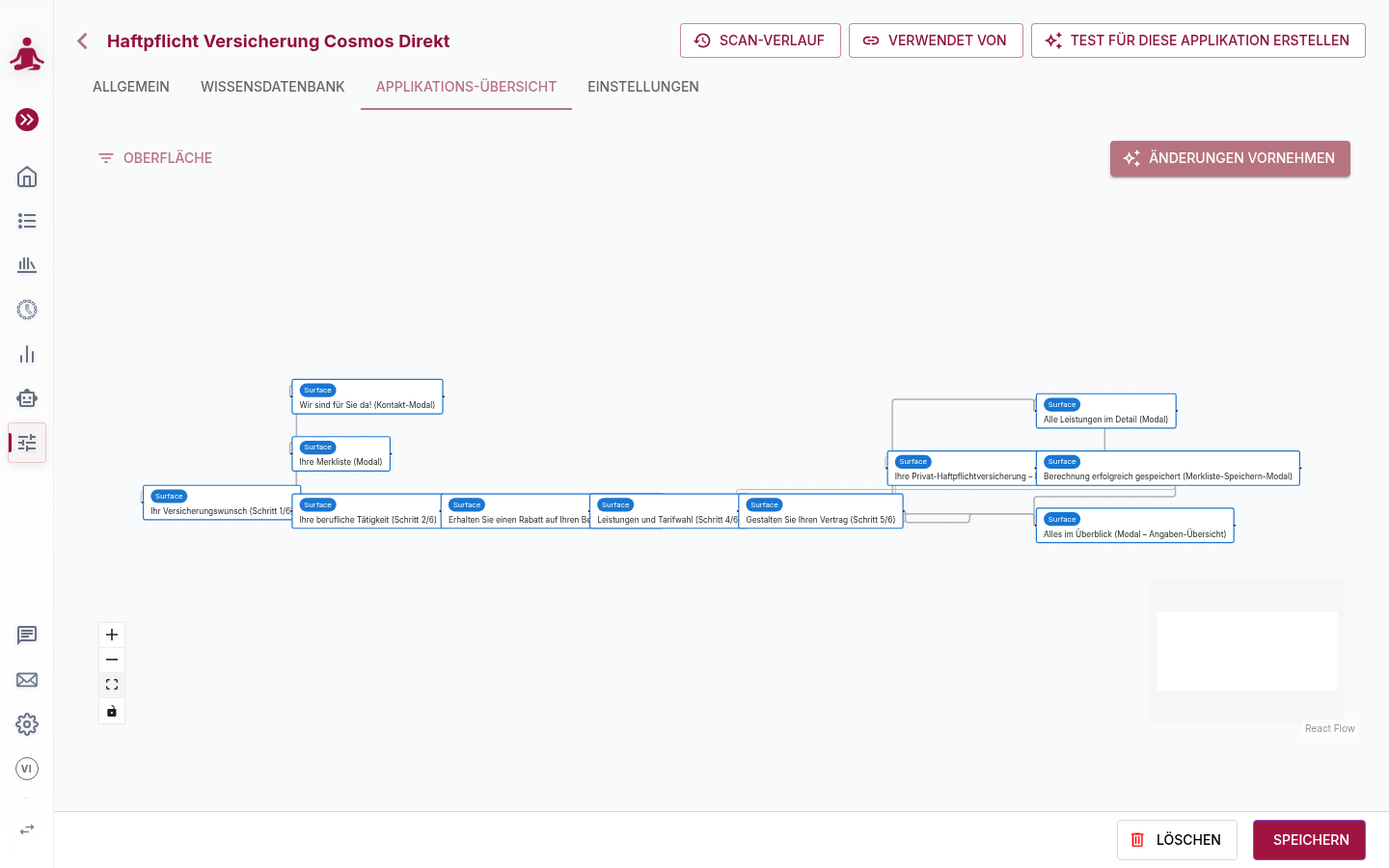
Each node is a surface the agent reached (a page, step in a flow, or a modal); the connections show how the agent moved between them. In the example above the agent mapped a six-step insurance-application flow plus the modal dialogs that appear along the way.
Reaching the map
Open an application (Settings → Application in the sidebar) and pick the Application Map tab. If the application has never been scanned, the tab shows an empty state inviting you to start a scan; otherwise it shows the current map.
The tab toolbar offers:
- Surface — filter / focus controls for the graph.
- Make changes — open the scan dialog to (re)scan the application or delete the map.
Use the controls in the bottom-left of the canvas to zoom and fit the view, and click a surface to see its details.
Running a scan
Choose Make changes to open the scan dialog.
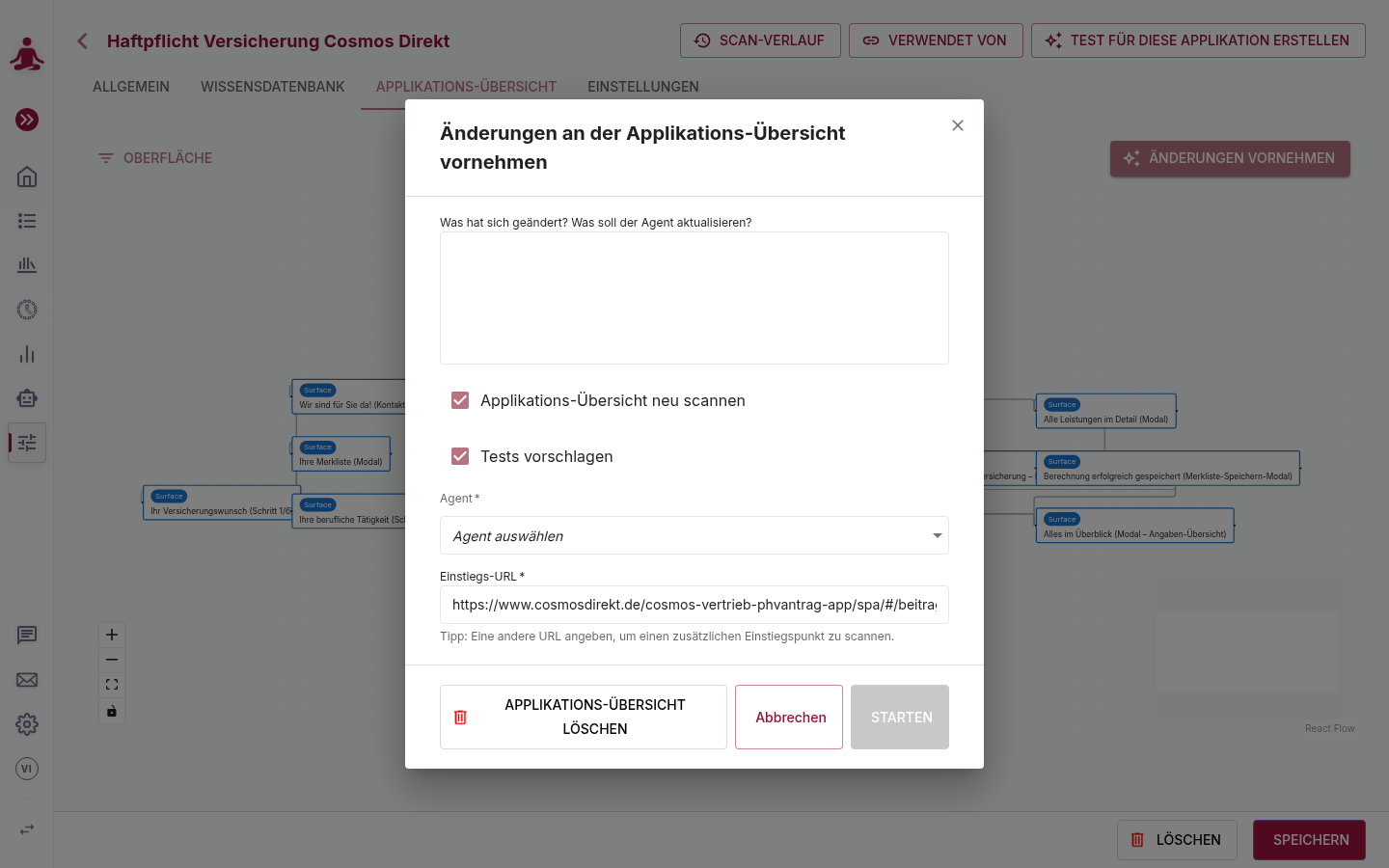
| Field | What it does |
|---|---|
| What changed? What should the agent update? | Optional notes that steer the agent — e.g. "the contract step was redesigned, re-map it". |
| Re-scan application map | Discover the application's surfaces (the map). |
| Propose tests | After mapping, draft a coverage proposal for you to review. |
| Test User | The test user the scan runs as. Required. |
| Entry URL | Where the scan starts. Pre-filled from the application's default URL; change it to scan an additional entry point. |
Confirm with Start. The scan runs as an AI assistant session you can watch live — the map fills in on the canvas as the agent discovers surfaces, and the agent appears in AI Assistants → Sessions as a Scan application session. You can also delete the map entirely from this dialog.
A scan drives a real browser and can take a few minutes. It creates temporary explorative tests to navigate the application; these are hidden from your test list and cleaned up automatically — see The idea behind onboarding flows.
Reviewing proposed tests and building them
If you asked the agent to Propose tests, it presents a draft list of tests to cover the mapped flows. You review the proposals — edit, accept or reject each one — and the accepted tests are then built into ordinary test cases that appear in your normal test list. Nothing is committed without your review.
Keeping the map current
The map is a living artefact. When the application changes, run Make changes again with a note about what changed; the agent updates the affected surfaces rather than starting from scratch. The Scan history button in the application header lists previous scans.
From the map to a test, directly
The application header also has Create test for this application, which starts a new test pre-filled with the application's defaults — handy when you want to author one test by hand rather than run a full proposal cycle.