Enabling AI features
The AI assistants, the onboarding flow and the application Knowledge Base are opt-in per tenant. This page is for administrators: it covers switching the features on and choosing the models they use.
1. Turn the assistants on
AI Assistants are gated by a tenant feature flag. While it is off, the AI Assistant tab, the Knowledge Base and Application Map tabs, and the session APIs are unavailable. A tenant administrator enables it in the tenant's administration area. (A separate flag controls the MCP server; both default to on for existing tenants but can be switched off per tenant.)
2. Choose the models
Open AI Assistants → Settings in the sidebar. The General tab sets the defaults used across all assistants.
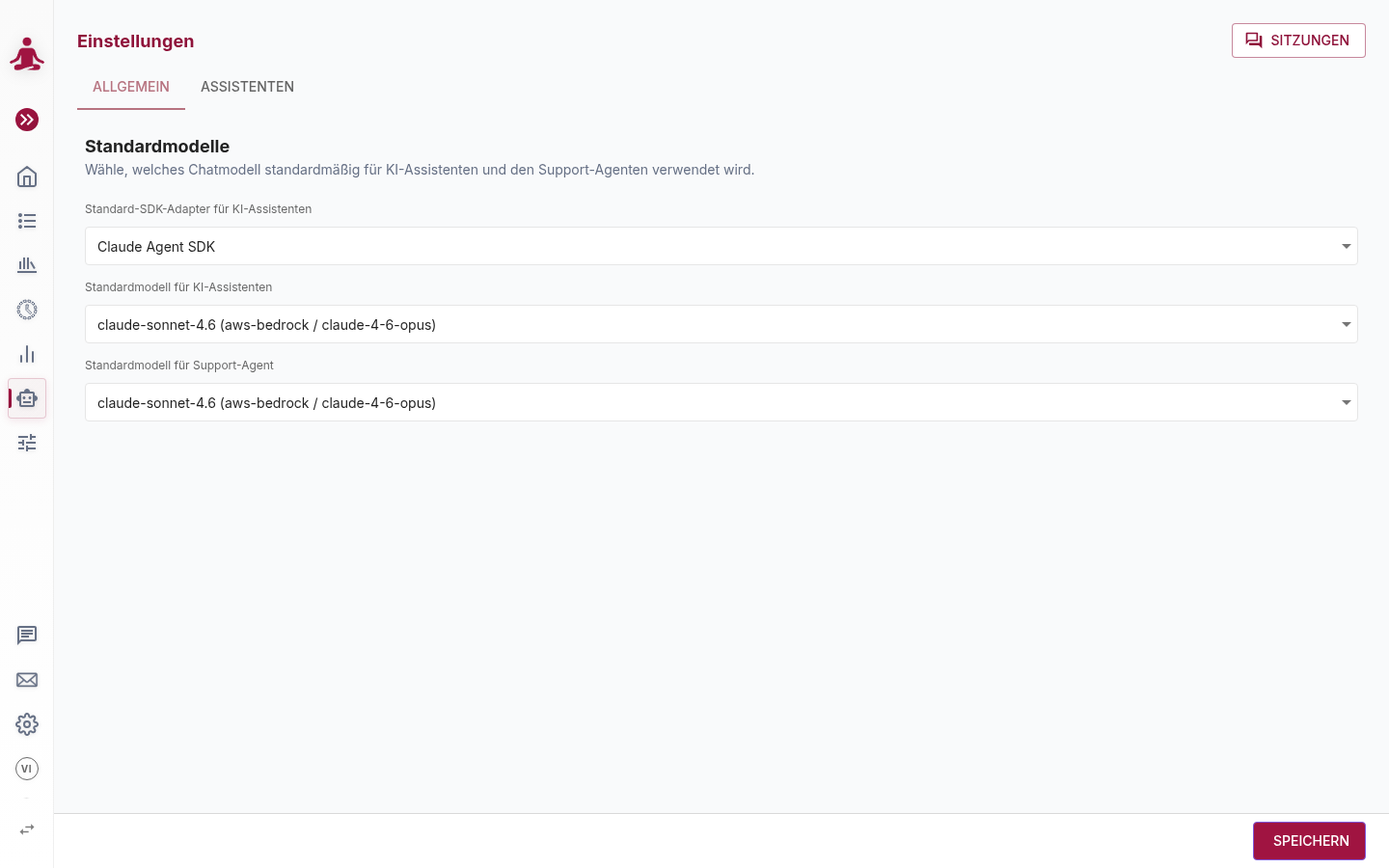
| Setting | What it controls |
|---|---|
| Default SDK adapter for AI assistants | Which agent runtime to use — the Claude Agent SDK (Anthropic Claude models) or the Copilot SDK (OpenAI / Azure OpenAI models). |
| Default model for AI assistants | The chat model every assistant session uses by default. |
| Default model for Support agent | The chat model the floating Get Support widget uses. |
The model list is drawn from the chat models configured in AI-Models. If no model is selected here, users cannot start assistant sessions.
"Copilot" is not a separate product or toggle. When the selected model is an OpenAI / Azure OpenAI model the assistant uses the Copilot SDK and surfaces as Copilot; when it is an Anthropic Claude model it uses the Claude Agent SDK. The tab and use cases look the same either way.
Recommended models
The assistant works best with high-capability reasoning models. Lower-cost models are not refused, but they tend to lose track of multi-step instructions and produce poorer edits during long sessions. As a baseline:
| Vendor | Recommended baseline |
|---|---|
| Anthropic Claude | Claude Opus (current generation) |
| OpenAI / Azure OpenAI | GPT-5 or newer |
You can keep cheaper models configured for assertions and element identification (so day-to-day test execution stays affordable) while reserving the strong reasoning model for the assistants.
3. (Optional) Tune per-use-case defaults
The Assistants tab lets you override defaults per use case (Get this test passing, Define / change test, Free chat, and the onboarding use cases).
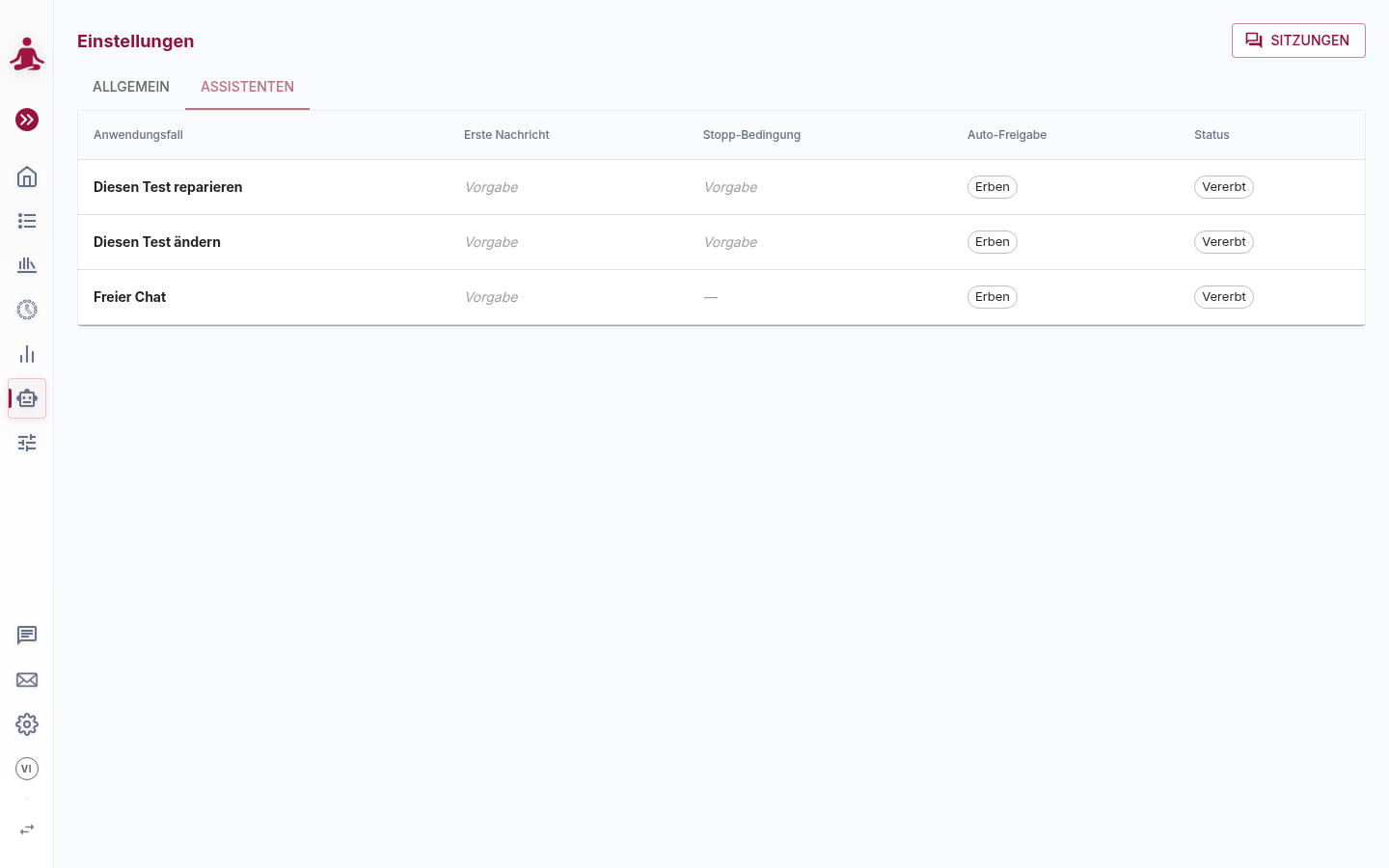
| Column | What it sets |
|---|---|
| First message | The opening instruction the session starts with. Default uses the built-in prompt. |
| Stop condition | When the agent should consider itself done. Default uses the built-in condition; not applicable to Free chat. |
| Auto-approve | Whether test-changing actions are auto-approved by default — Inherit, Off or On. |
| Status | Whether the row uses inherited defaults or a custom override. |
Leave everything Inherited unless you have a specific reason to change it — the built-in prompts and stop conditions are tuned for each use case.
What users see if it isn't configured
If AI Assistants are disabled, the assistant tabs simply don't appear. If they are enabled but no default model is selected, users opening the AI Assistant tab cannot start a session until an administrator selects a model here.