The AI Assistant
The AI Assistant is an interactive, agent-style chat that helps you create, fix and reason about your tests. Unlike a one-shot generation, an assistant session is a persistent conversation: you iterate with it over many turns, ask it to investigate failures, change steps, validate the result, and resume the conversation later.
Depending on the use case you pick, the assistant can read a test, run it, look at logs and screenshots, edit individual steps, and add or remove activities, parameters and variants — and it asks for your approval before each change that modifies a test.
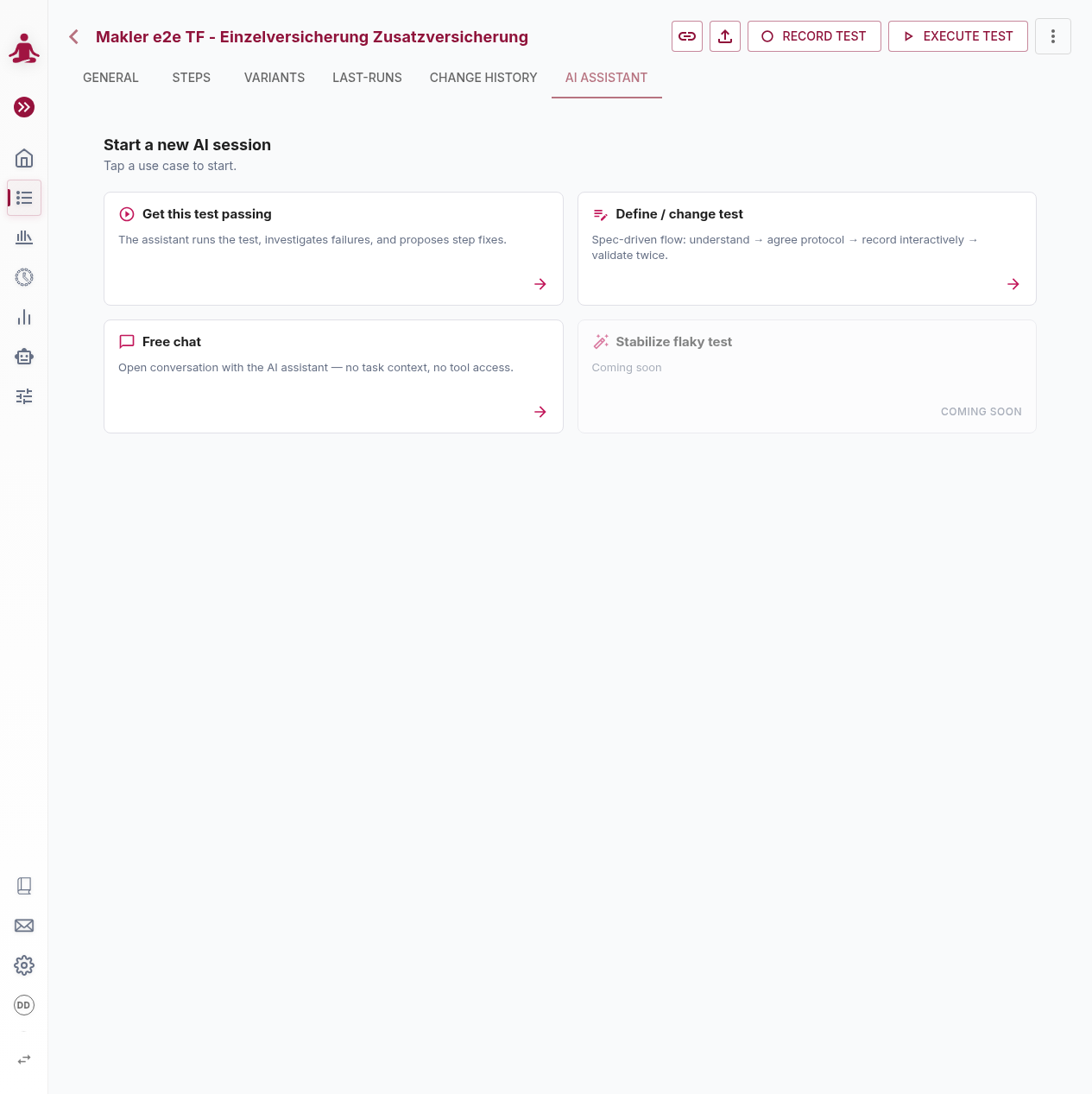
Where you find it
- On a test — the AI Assistant tab on the test-details page opens a session scoped to that test. This is the most common entry point.
- AI Assistants → Sessions in the sidebar — a tenant-wide overview of every session (running and finished), from which you can resume earlier conversations.
- Get Support — a floating chat widget (bottom-right) for general questions about the product; see Get Support below.
Starting a session
On a test, open the AI Assistant tab and pick a use-case card. Each card launches a session with a different system prompt and a different set of tools the assistant may use. Sessions are saved per test, can be resumed after you close the browser, and list previous sessions on the same test.
Only one running assistant per test is enforced — while a session is still running, starting a new one is disabled with a tooltip. Starting "+ New" returns you to the start screen; the active session keeps running in the background and stays resumable from the session list.
Use cases
Get this test passing
The assistant tries to make a failing test pass again with the smallest possible change.
- You provide: the test you are looking at, plus optionally a hint about what you think is wrong. No screenshots or logs needed — the assistant pulls them itself.
- What it does: runs the test, inspects logs and screenshots at the failing step, looks at the definition, and proposes / applies targeted fixes — clarifying an ambiguous step, adjusting a wait, fixing a misnamed element, or relaxing an overly strict assertion. It is instructed to preserve the test's intent and to stop as soon as the test passes.
- You get back: an updated test plus a transcript. Review the diff in the Change History tab.
Define / change test
A spec-driven flow for authoring a brand-new test or substantially redefining an existing one, in three guarded phases: understand → agree protocol → record interactively → validate twice.
- Understand & align. The assistant reads the current test, summarizes it, and asks clarifying questions. It will not change anything until you explicitly accept the protocol it proposes.
- Build interactively. It starts an interactive execution (pausing after each step so it can see the live page) and adds or edits steps one at a time, validating each against the running application. Recorded steps use concrete values; parameterization happens later.
- Validate twice. When it believes it is done, it runs the test through two non-interactive executions in a row. Both must pass, or it restarts the validation phase.
Free chat
A pure conversation, with no tools and no test access. The assistant cannot run anything, read execution data or change a test — it only answers questions. Good for asking how features work, prompt-writing tips, or brainstorming a test strategy.
Onboarding use cases
Some sessions are created for you by the onboarding flow rather than from the start screen — Scan application, Propose test coverage and Create new test. They appear in the session list like any other session. See The idea behind onboarding flows and Application Map.
What the assistant can see and do
| Capability | Get this test passing | Define / change test | Free chat |
|---|---|---|---|
| Read the bound test case | ✓ | ✓ | — |
| Read execution history, logs and screenshots | ✓ | ✓ | — |
| Run the test (non-interactive) | ✓ | ✓ | — |
| Run the test interactively, step by step | — | ✓ | — |
| Edit individual steps | ✓ | ✓ | — |
| Add / remove steps, activities, parameters and variants | ✓ | ✓ | — |
A test-scoped session sees only the test it was started from and that test's execution history — nothing else in the tenant.
Approving changes
Whenever the assistant wants to change a test, it shows an inline approval card with the proposed change before anything is saved. You can approve or reject each change. For convenience you can also auto-approve:
- For this session — every change in the session is applied without asking again.
- For one test — useful in sessions that move between several tests, so you consent per test.
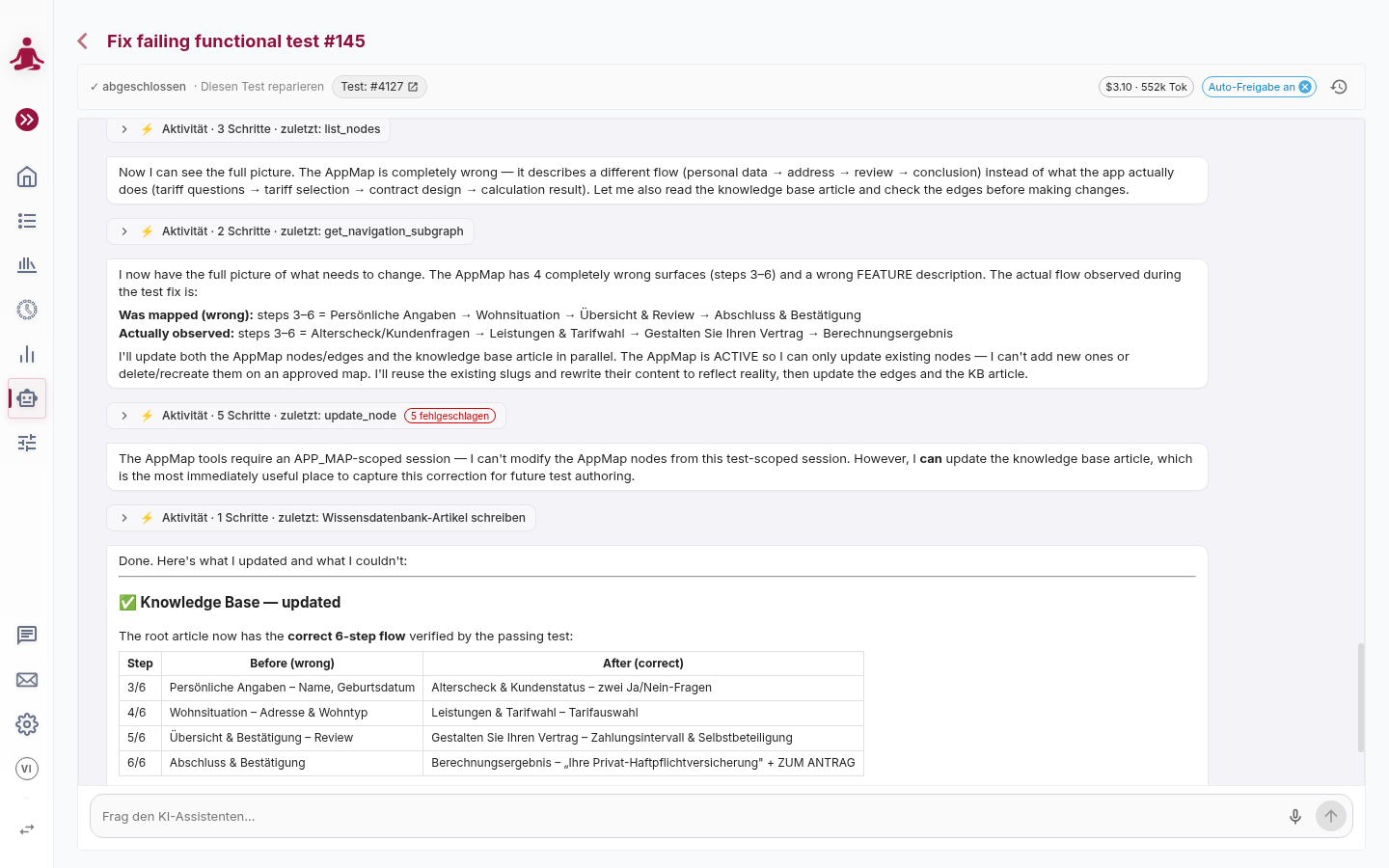
Auto-approve grants show as a small chip in the header, each with an ✕ to revoke. Changes that were auto-approved are still recorded in the transcript and marked as such, so you can audit what happened without your input.
Sessions and resuming
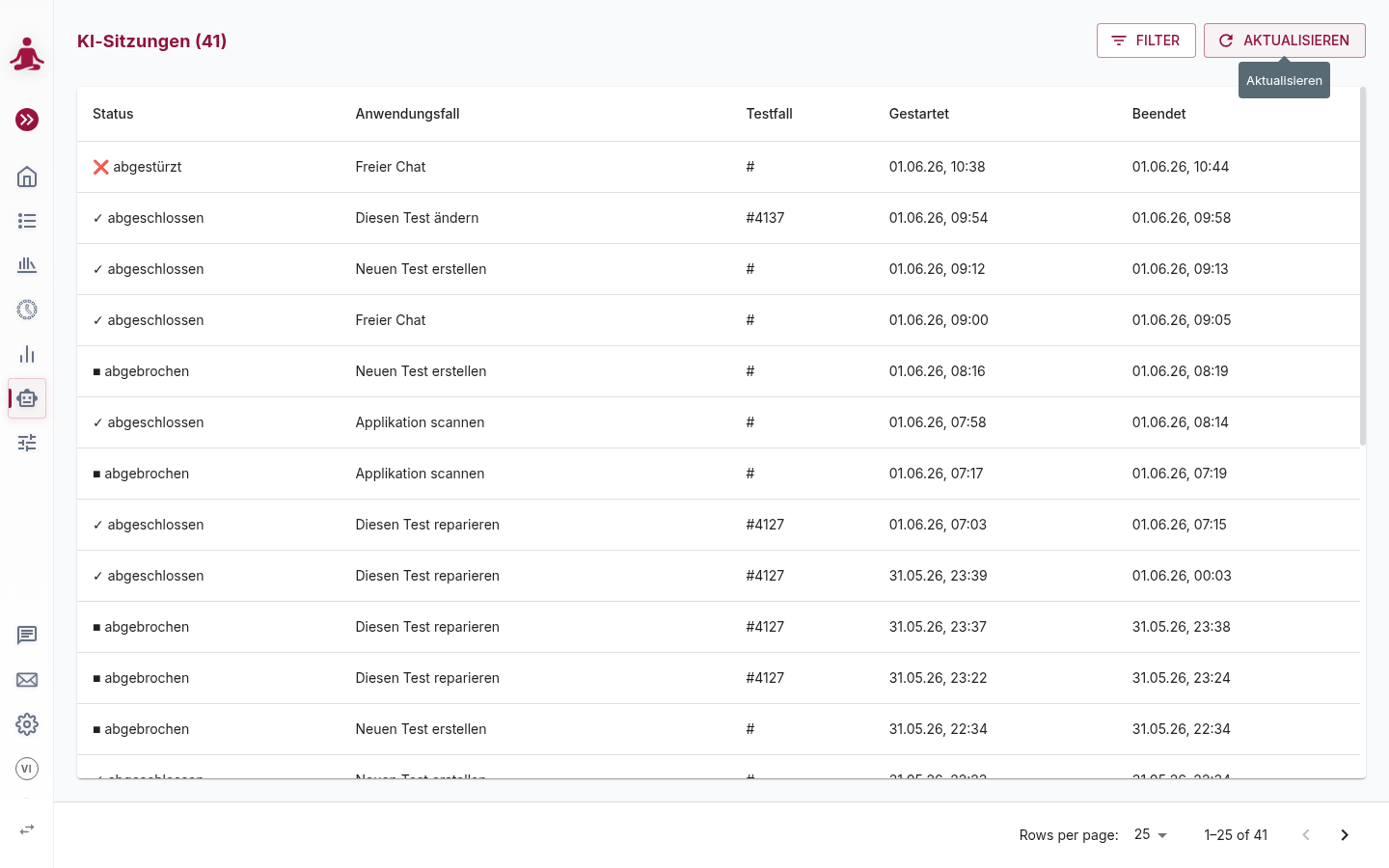
- Sessions are saved per test and listed under AI Assistants → Sessions with their status, use case, bound test, and start / end times.
- A session can be resumed later — the assistant rewinds to its previous state and the conversation continues.
- Two users on the same tenant can have parallel sessions on the same test, but this is risky in the editing use cases because both can change the same test. Coordinate, or work sequentially.
Language
The assistant replies in the language of your first message — write your opening request in German and the whole session answers in German, open it in English and it answers in English. This is independent of the application under test: labels, values and error messages the assistant reads on screen are quoted verbatim in their original language, but the sentences around them stay in your language.
You can switch mid-session by deliberately writing a whole message in the other language — the assistant follows you. A quoted error, a pasted log line or a borrowed technical term does not count as a switch.
Your configured UI language is only a fallback: it decides the reply language solely for sessions whose opening message contains no text you typed (for example a session the platform started on your behalf).
Cost tracking
Every turn is metered (input tokens, output tokens, cache hits). The running cost in USD is shown on the session, provided the configured chat model has pricing set up. There is no hard per-session cost ceiling — keep an eye on the indicator during long debugging sessions; operational restrictions (such as max AI cost per day) still apply.
Get Support
A persistent floating chat widget (bottom-right, opened from Get Support in the sidebar) runs a Free-chat session for general product questions. It carries a little context about where you are in the app (the current page and the most recent error) so its answers are more relevant, and it links to this documentation. It is disabled if your account has no tenant assigned.
Permissions
- Anyone with access to the tenant and the test can start a session.
- Editing tests through the assistant requires the same edit rights you need to save changes manually.
- Tenant administrators can view sessions created by other users.
Good practices
- Accept the protocol first. In Define / change test the assistant waits for your explicit acceptance before editing — this prevents wasted work.
- One step at a time during interactive recording. Asking it to batch many steps in one turn is slower, not faster.
- Concrete values first, parameters later. Convert a working test into a data-driven one, not the reverse.
- Free chat is intentionally tool-less. If you want it to read or change a test, pick one of the other use cases.
Configuration
The AI Assistant is opt-in per tenant and an administrator must choose the chat model it uses. See Enabling AI features.