Macros
Macros are small, named functions you can call from inside any test field (step description, start URL, parameter value, …). They take arguments, run a piece of logic, and return a single value that is inlined into the field at execution time.
Typical use cases:
- compute a date relative to today (e.g. "tomorrow", "10 working days from now"),
- generate random data (numbers, names, identifiers),
- format or transform a value (uppercase a parameter, strip whitespace, …),
- pull a value out of a longer string,
- centralize any small bit of logic that you would otherwise repeat across many tests.
This video walks through creating a macro from a plain-language description, testing it in the sandbox, and saving it for reuse:
How macros differ from parameters and script functions
It's easy to confuse the three "dynamic value" mechanisms in msg.ZenTestAI. The shortest summary:
| Concept | Syntax | What it is |
|---|---|---|
| Parameter | [[parameterName]] | A placeholder for test-level data that is filled in per variant (or as a constant). Static — no logic. |
| Macro | ${=keyword(arg1, arg2)} | A reusable function that returns a computed value. Can take parameter references as arguments. |
| Script function | configured on the General tab | A JavaScript lifecycle hook (before/after the whole test, or as a step) that runs at fixed points. Not a value-returning expression. |
A parameter is data. A macro is a function. A script function is a hook. Macros are usually the right pick when you need "a value computed on the fly".
Calling a macro
A macro call is written using the special syntax:
${=macroKeyword(argument1, argument2, ...)}
For example, with the built-in global_addDays macro:
${=global_addDays(7)}                                  → today + 7 days, formatted YYYY-MM-DD
${=global_addDays(-1, DD.MM.YYYY)}                     → yesterday, formatted DD.MM.YYYY
${=global_addDays(30, YYYY-MM-DD, [[startDate]])}      → 30 days after the [[startDate]] parameter
Macro arguments can be plain values or parameter references in [[parameterName]] syntax — they will be substituted before the macro runs.
Insert via autocomplete
You normally don't need to memorize the syntax. In any input field that supports macros, just type the = character and the autocomplete picker will offer the macros (and parameters) available in your tenant. Pick one, fill in its arguments in the small dialog that appears, and the editor inserts the fully-formed ${=...} call for you.
The autocomplete also shows each macro's business signature (e.g. "the sum of $0 and $1"), so you can pick by what the macro does rather than by its keyword.
Where macros can be used
Macros are accepted in any field that takes a step or URL description, including:
- the Start URL on the General tab,
- every step description on the Steps tab,
- step-level fields like XPath and Additional Instructions for AI,
- parameter values in variants.
Macros are evaluated at execution time, every time the field is read — so a macro used in many steps will be evaluated for each step.
Macros cannot call other macros (no nesting). If you need composition, do it inside the macro's own script.
The Macros page
All macros for the current tenant are managed under Additional Functions → Macros.
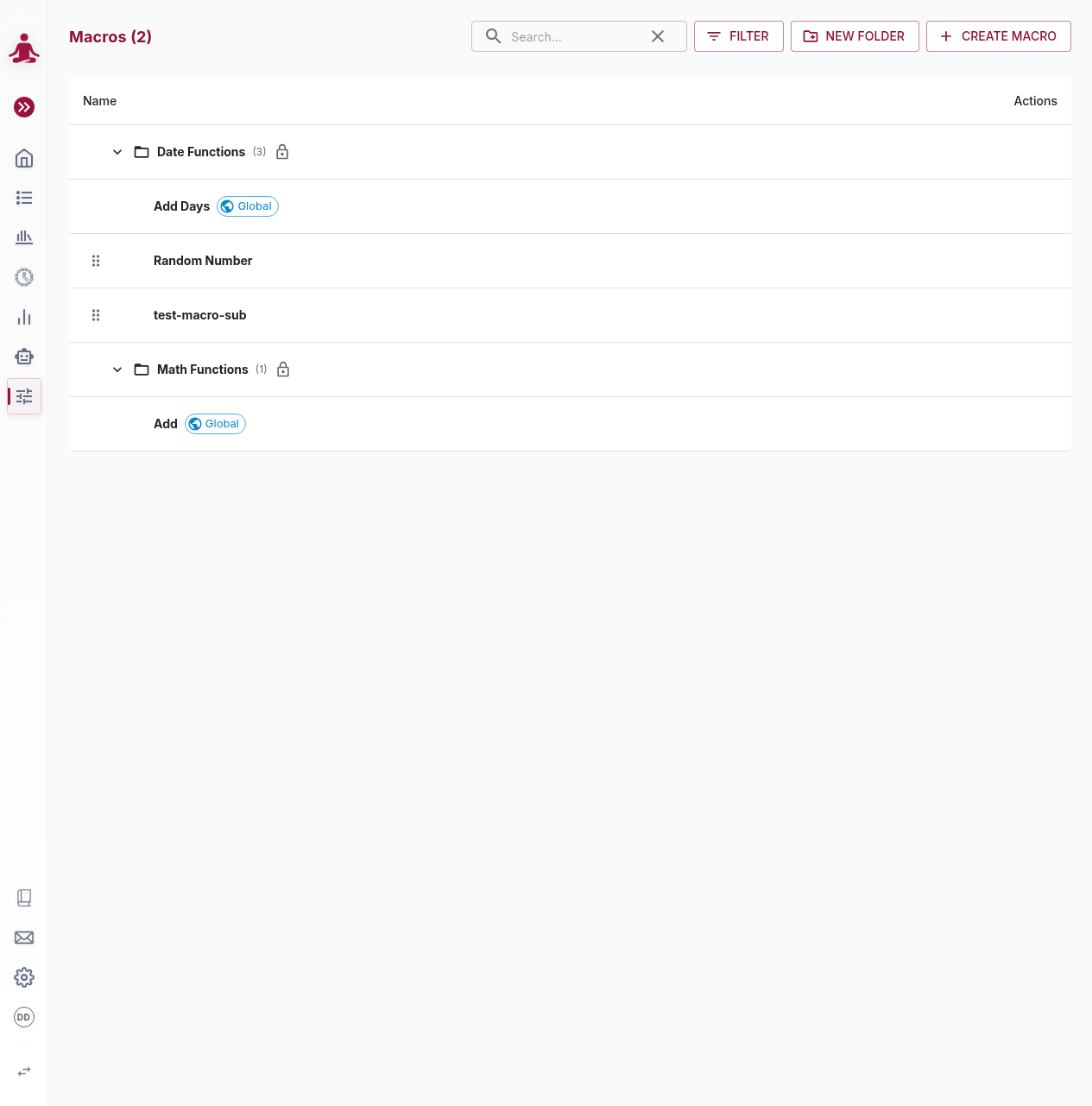
The list groups macros into folders. The toolbar provides:
- Search — filter by macro name or keyword.
- Filter — show/hide subsets (for example, global vs. tenant-specific macros).
- New folder — add a folder to organize your macros.
- Create macro — create a new tenant macro from scratch.
Each macro row shows its name and a Global badge for built-in, system-managed macros. Tenant macros have a drag handle to reorder or move them between folders. Folders that contain only global macros display a lock icon — they cannot be edited. The folder mechanics are described in detail in Folders.
Built-in (Global) macros
msg.ZenTestAI ships with a small set of global macros that are available to every tenant out of the box. You cannot edit or delete them, but you can call them just like your own.
| Keyword | Folder | What it does |
|---|---|---|
global_addDays | Date Functions | Adds/subtracts days to a date. Defaults to today; default format YYYY-MM-DD. |
global_addMonths | Date Functions | Adds/subtracts calendar months; clamps to the last valid day (31 Jan + 1 month → 28/29 Feb). |
global_addYears | Date Functions | Adds/subtracts calendar years; clamps 29 Feb to 28 Feb in non-leap years. |
global_now | Date Functions | Current date and time in a given timezone. Defaults to UTC and YYYY-MM-DD HH:mm:ss. |
global_add | Math Functions | Sum of two numbers. |
global_subtract | Math Functions | Difference of two numbers (first minus second). |
global_multiply | Math Functions | Product of two numbers. |
global_divide | Math Functions | Quotient of two numbers (first divided by second). Errors on division by zero. |
global_round | Math Functions | Rounds a number to a given number of decimals. Defaults to 0. |
global_formatNumber | Math Functions | Formats a number with fixed decimals and custom decimal/thousands separators. |
global_randomNumber | Random Data Functions | Random integer between a min and max (both inclusive). |
global_uuid | Random Data Functions | Random version 4 UUID. |
global_randomEmail | Random Data Functions | Unique random e-mail address. Defaults to the example.com domain. |
global_padStart | Text Functions | Pads the start of a value to a target length. Default pad character 0 (e.g. 42 → 00042). |
The random macros produce a fresh value on every call, so they are not reproducible — capture the result in a parameter with a Remember step if a later assertion needs the exact value.
More built-ins may be added over time — check the Macros page in your tenant for the current list.
Use the autocomplete picker (=) to discover the macros available in your tenant rather than relying on this list.
Tenant macros
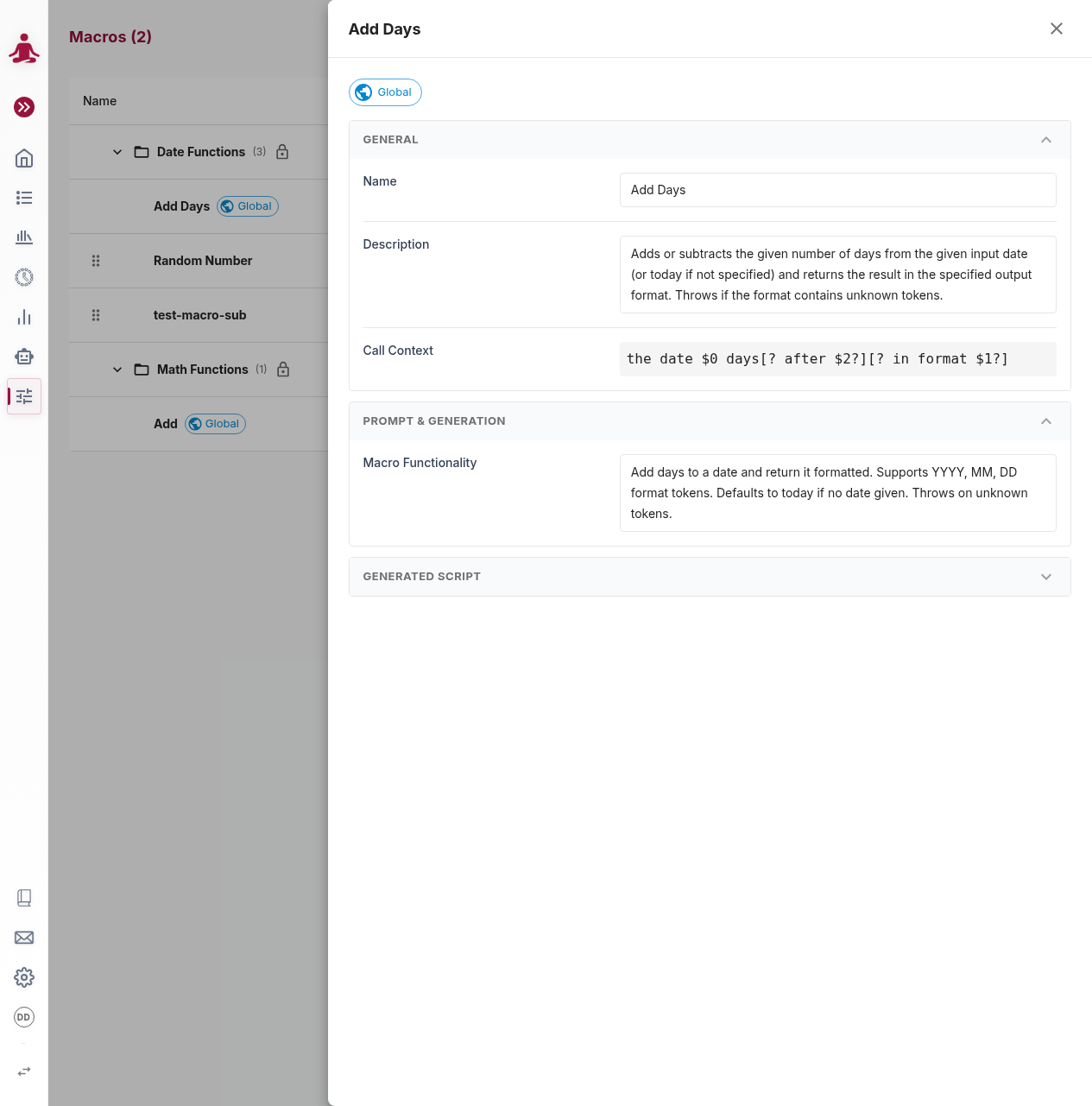
You can define your own macros in the Macros page using Create macro. The editor opens in a sidebar:
General
- Name — the human-readable name shown in the list and the autocomplete picker.
- Description — what the macro does. Shown in the autocomplete picker as helper text.
- Call Context — the business signature that the AI agent sees when interpreting your step. Use
$0,$1, … as positional placeholders for the macro arguments. Wrap a fragment in[? ... ?]to make it optional (e.g.the date $0 days[? after $2?][? in format $1?]only renders the after / in format parts when those arguments are provided). - Folder — where the macro lives in the Macros page hierarchy.
- Parameters — the macro's arguments, in order. Each parameter has a name, a type (text, number, or boolean), an optional description, and an optional flag for whether the argument can be omitted in the call.
Prompt & Generation
The body of a macro is JavaScript. You typically don't write it by hand:
- Macro Functionality — describe in plain language what the macro should do, what arguments it should take, and which value it should return.
- The system uses an AI assistant to translate the description into a working JavaScript function, which is filled into the Generated Script section.
- You can review and tweak the generated script in the Monaco editor, or trigger regeneration with a refined prompt.
You can test a macro before saving it, by providing sample argument values and running it in a sandbox — handy for verifying that the generated logic does what you want.
Editing and deleting
Tenant macros can be freely edited and deleted. When you change a macro's keyword, parameters, or script, msg.ZenTestAI warns you if any existing test steps reference it, so you can review them for compatibility before saving. Use the Usage References button in the macro editor to see all tests that currently call the macro.
Permissions
Creating, editing and deleting macros requires edit rights on the tenant. Anyone with access to the tenant can use existing macros in their tests.
How macros are evaluated
Macros are evaluated at test execution time, per step:
- Parameters in arguments (
[[...]]) are substituted with their concrete values. - The macro's script runs and produces a return value.
- The resulting value replaces the
${=...}call in the step (or URL, or parameter value).
If a macro errors at evaluation time, the step fails with the macro's error message, which is also written to the execution log.
Reading a tenant secret from a macro
A macro receives the msg.ZenTestAI scripting api as an argument, so it can read a tenant-level secret maintained under Tenant settings → Secrets. Declare api as a parameter of the macro function and make the macro async:
async function authHeader() {
  return 'Bearer ' + (await api.getSecret('EXTERNAL_API_KEY'));
}
Never log a secret or place it in a step description — the execution protocol stores both in plain text. See Scripting for the full rules.
Macro results are not shared across steps — each call is evaluated independently. If you need a single value that is stable for the whole test (e.g. one timestamp shared by every step), store it in a parameter instead.