External Systems
msg.ZenTestAI can connect to external test-management systems so that tests defined there can be executed by the AI agents and the results pushed back. After a test is imported it stays linked to the external system: re-running the import keeps it in sync with the source, and execution results from msg.ZenTestAI flow back into the external tool.
Supported external systems
| External system | Type |
|---|---|
| Xray Cloud | Synchronize |
| Xray Data-Center | Synchronize |
| Zephyr Scale | Synchronize |
| Zephyr Data-Center | Synchronize |
All currently supported connectors work in Synchronize mode: the external system remains the master for title, description and steps, and msg.ZenTestAI pulls updates on demand. There is no one-shot "fire-and-forget" import; an imported test is always bound to its source unless you explicitly unlink it (see Locking, unlinking and conflicts).
High-level workflow
The end-to-end flow is the same for all four connectors:
- Configure the connector in the tenant administration (see Configuration) and verify it with Test the connection.
- Set the Default User and Default URL in your tenant defaults so that newly imported tests have everything they need to run (see Tenant-Settings).
- In the test-case list, open More actions → Import → Import from Xray / Import from Zephyr to open the import dialog.
- In the dialog, search the external system, then select the tests to import.
- The imported tests appear in the list with their Source system ID column populated. Their title, description and steps are now read-only and reflect the external system; other fields (URL, test user, tags, parameters and — when configured — Jira custom field values) remain editable in msg.ZenTestAI.
- Re-sync at any time — either a single test from the test details, or all bound tests at once from the Synchronize entry in the test-list menu.
- When a bound test is executed, msg.ZenTestAI creates a new test run in the external system with the per-step results, screenshots and AI explanations.
Configuration
External systems are configured per tenant in Administration → Select your Tenant → External systems. Pick one entry from the External System Type dropdown and fill in the fields described below. Use Test the connection to validate the credentials before saving.
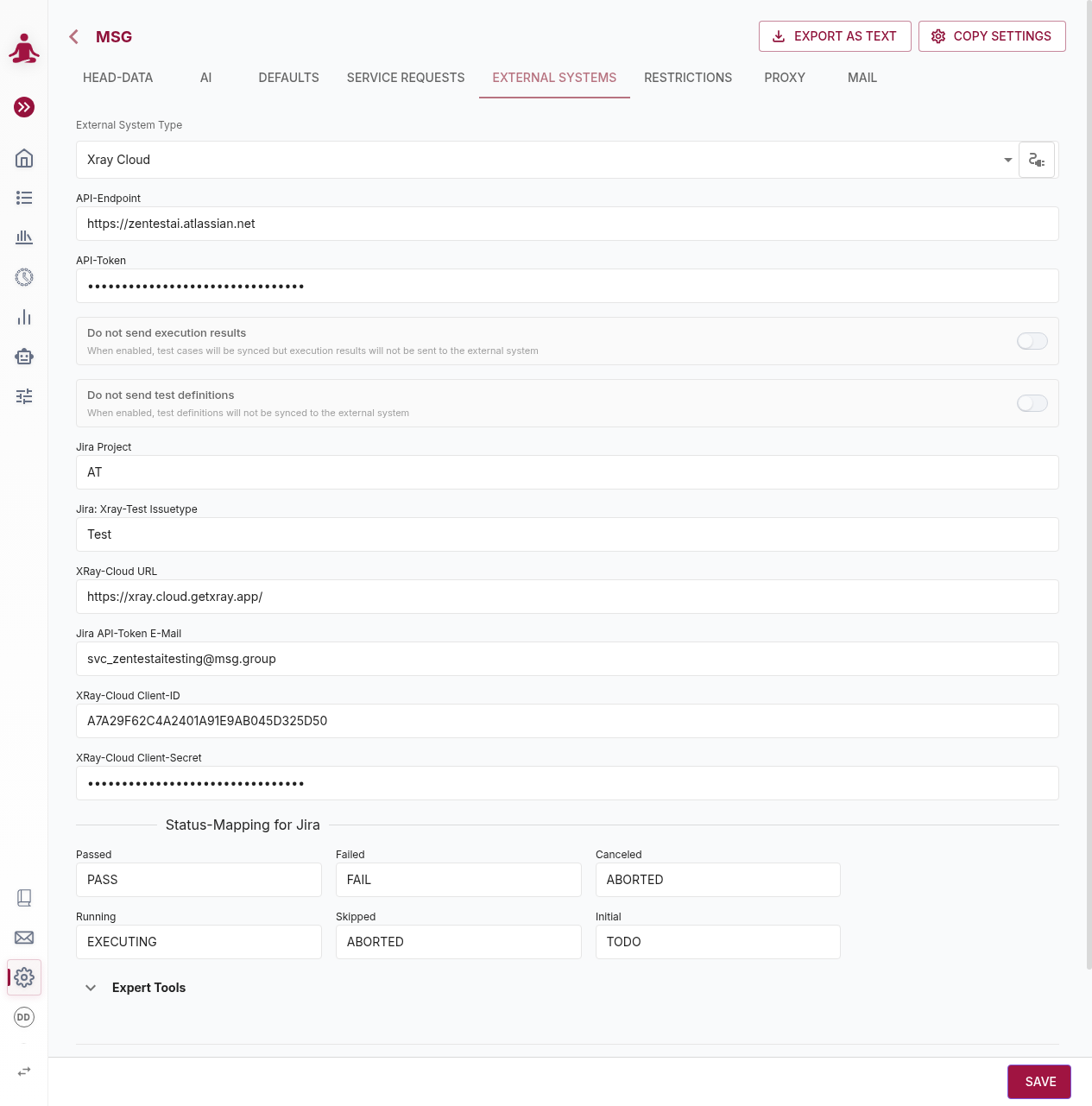
Two flags are common to all connectors:
- Do not send execution results — when enabled, test cases are still synchronized from the external system, but execution results are not pushed back. Use this when you want to keep msg.ZenTestAI as a read-only consumer of the external test catalog.
- Do not send test cases — when enabled, local changes to bound test cases are not pushed back to the external system. The connector behaves strictly as a one-way pull.
Xray Cloud
| Field | Description |
|---|---|
| API-Endpoint | The base URL of your Jira Cloud instance (e.g. https://your-org.atlassian.net). |
| API-Token | Jira Cloud API token used together with the email below for Jira authentication. |
| Jira Project | The project key in Jira where the test issues live (e.g. AT). |
| Jira: Xray-Test Issuetype | The issue type used in your project for Xray tests (e.g. Test). |
| Test Execution issue type | The Jira issue type used when creating the Test Execution for pushed results (required by the Xray multipart import). Defaults to Test Execution. |
| XRay-Cloud URL | The URL of the Xray Cloud API, typically https://xray.cloud.getxray.app/. |
| Jira API-Token E-Mail | The e-mail address of the Jira user the API token belongs to. |
| XRay-Cloud Client-ID | OAuth client id for the Xray Cloud API. |
| XRay-Cloud Client-Secret | OAuth client secret for the Xray Cloud API. |
Xray Data-Center
| Field | Description |
|---|---|
| API-Endpoint | The root URL of your Jira instance (which must have Xray installed). |
| API-Token | A Jira API token with read and write access to the configured project. |
| Jira Project | The project key where the test issues live. Currently a maximum of one Jira project per tenant is supported. |
| Jira: Xray-Test Issuetype | The issue type used in your project for Xray tests. |
| Test Execution issue type | The Jira issue type used when creating the Test Execution for pushed results (required by the Xray multipart import). Defaults to Test Execution. |
Zephyr Scale
| Field | Description |
|---|---|
| API-Endpoint | The URL of the Zephyr Scale Cloud API, typically https://eu.api.zephyrscale.smartbear.com (regional URLs may differ). |
| API-Token | The token used to authenticate against the Zephyr Scale API. |
| Jira Project | The Jira project key associated with the Zephyr Scale tests. Currently one project per tenant is supported. |
Zephyr Data-Center
| Field | Description |
|---|---|
| API-Endpoint | The URL of your on-premise Zephyr Data-Center API. |
| API-Token | The token used to authenticate against the Zephyr Data-Center API. |
| Jira Project | The Jira project key associated with the Zephyr tests. |
Status mapping
Every connector has a Status-Mapping section that maps the msg.ZenTestAI execution statuses to the status values expected by the external system. The defaults match the standard Xray / Zephyr status names; change a mapping when your installation uses custom statuses.
The six mappable statuses are: Passed, Failed, Canceled, Running, Skipped, Initial.
Jira custom fields
For the Xray connectors only, administrators can define a list of Jira custom fields per tenant in the external-system configuration (Jira Customer Fields → Maintain custom field mapping). Each entry consists of:
- Field ID — the technical Jira field id (e.g.
customfield_10012). - Label — the display name shown to users on the detail pages.
- Value Type — how the value is sent to Jira: Text (plain string), Multi Name (comma-separated list, e.g. for Components or Fix Versions) or Option (single-select option field).
Fields are configured separately for test cases (Custom fields (Test)) and for execution plans (Custom fields (Execution Plan)). The configured fields then appear as input fields on the test case and execution plan detail pages, where users fill in the actual values. When execution results are pushed to Xray, these values are written to the corresponding Jira fields on the created Test Execution issue (see Result push-back).
Importing tests
Once at least one connector is configured, the test-case list shows an Import entry in the More actions menu. The Import sub-menu offers one entry per configured external system (in addition to Import via AI, which is unrelated to external systems — see Test-Case Overview).
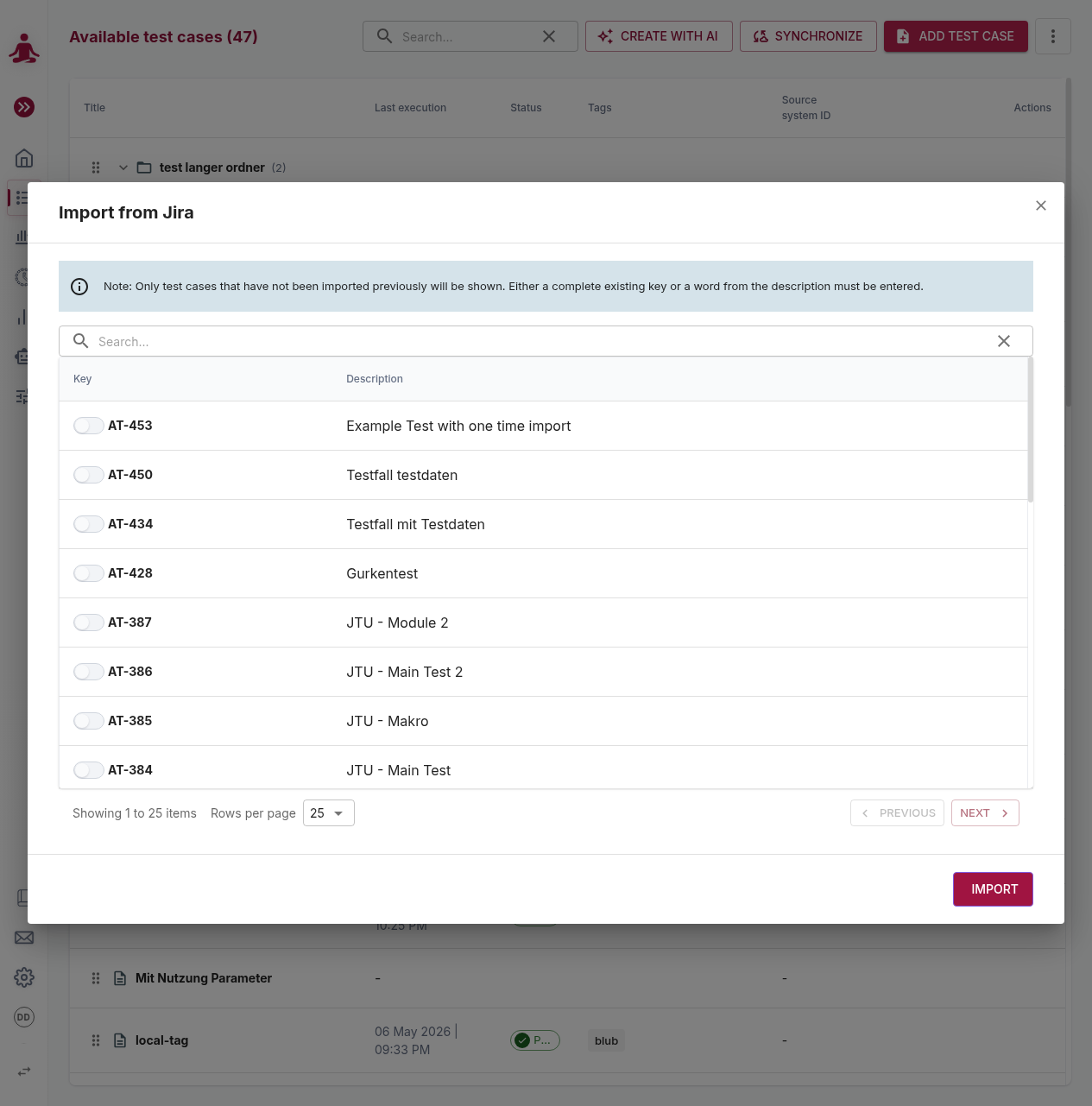
The dialog lists only test cases that have not yet been imported into msg.ZenTestAI — already-imported tests are filtered out. To narrow the list, type a complete external key (e.g. AT-453) or a word from the description into the search box; the search runs against the configured Jira project.
Toggle the switch next to each test you want to import, page through the results if needed, and click Import to confirm. The selected tests appear in the test-case list with their Source system ID populated.
To delete a synchronized test, just delete it in msg.ZenTestAI — there is no need to delete it in the external system. Imports are not automatic: to pick up new or changed tests, run a re-sync manually (see Re-synchronizing below).
Re-synchronizing
There are two ways to pull the latest state from the external system:
- Single test — open the test details and click Synchronize. The latest title, description and steps are pulled and overwrite the local copy.
- All bound tests — on the test-case list, the menubar shows a Synchronize entry as soon as at least one test in the tenant is bound to an external system. This re-pulls every bound test of the current view (test cases or snippets) in one go. The bulk sync re-pulls all bound items, regardless of whether they changed in the external system.
Locking, unlinking and conflicts
A test imported from an external system is bound to it. While bound:
- Title, description and steps mirror the external system and are not editable in msg.ZenTestAI.
- URL, test user, tags, parameters and Jira custom field values are editable locally and stay local.
If you want to take a test (or snippet) out of sync — for example to fork it and change its steps — open the test (or snippet) detail view and use the Unlink action. From that moment:
- msg.ZenTestAI becomes the master for the entry.
- All fields, including title/description/steps, are editable.
- Future re-syncs will not overwrite the unlinked entry.
- If the unlinked item is a test case that referenced bound snippets, those snippets are unlinked at the same time.
Sometimes you want to add a fixed "before login" or "after login" step to every Xray test without maintaining it in Xray. Configure those in Additional Functions → Application Settings → Login ("Step 0: Execute before login", "Step 0: Execute after Login").
Snippets and external systems
When importing test cases from Xray or Zephyr, the external system may contain reusable modules — "Call to Test" steps in Xray or "Test Call" steps in Zephyr. These are imported as snippets in msg.ZenTestAI:
- msg.ZenTestAI detects the module reference in the test steps.
- A new snippet is created from the referenced module (or reused, if it already exists).
- The module-reference step in the parent test is replaced with a snippet-reference step.
The result: shared logic from your external system is preserved as reusable snippets, and the test you imported references those snippets directly.
Snippets created from external systems are locked by the same rules as test cases — the external system is the master for steps, title and description. You can unlink a snippet in two ways:
- Open the snippet detail view and use its Unlink action.
- Or unlink the parent test case that references it — this cascades and unlinks every snippet referenced by that test.
Each external system ID can exist in msg.ZenTestAI as either a test case or a snippet, but never both. Importing a test whose external ID is already used by a snippet (or vice versa) is rejected with an error.
Result push-back
When a bound test is executed, msg.ZenTestAI creates a new test run in the external system that contains:
- The execution status, mapped through the tenant's Status mapping.
- Per-step pass / fail / skipped results.
- Screenshots and any video artifacts captured during the run.
- The AI agent's explanations for each step.
- Execution timestamp and duration.
When Jira custom fields are configured and values are filled in, the Xray connectors push results through Xray's multipart import instead of the standard import — the only Xray mechanism that allows setting arbitrary Jira issue fields on the created Test Execution. Custom-field values entered on the execution plan apply to the created Test Execution issue; values entered on the test cases apply as well — and when both define the same field, the test-case value wins over the execution-plan value. An Xray Test Plan Key entered on the execution plan links the created Test Execution to that Xray Test Plan (on both the standard and the multipart path).
Set Do not send execution results on the connector to keep results local. Connector specifics:
- Xray Cloud / Xray Data-Center — creates a new Xray Test Run linked to the executed tests.
- Zephyr Scale — creates a test cycle with one execution per test, with step-level results.
- Zephyr Data-Center — creates a single test run containing all executed tests in one batch.