AI Assistant
The AI Assistant tab on the test details page opens an interactive, agent-style chat scoped to the test you are looking at. Unlike the one-shot Create with AI flow on the test-case list, the AI Assistant is a persistent session: you can iterate with it over many turns, ask it to investigate failures, change steps, validate the result, and resume the conversation later.
The assistant has direct access to the test it is bound to. Depending on the mode you pick it can read the test, run it, look at logs and screenshots, edit individual steps, and add or remove activities, parameters and variants.
When to use the AI Assistant vs Create with AI
| Situation | Use this |
|---|---|
| You have nothing yet and want to onboard tests in bulk from a description / document. | Create with AI / Import via AI |
| You have an existing test and want to debug it, extend it, or rewrite it. | AI Assistant (this page) |
| You want a quick Q&A about how the product works. | AI Assistant → Free chat |
Starting a session
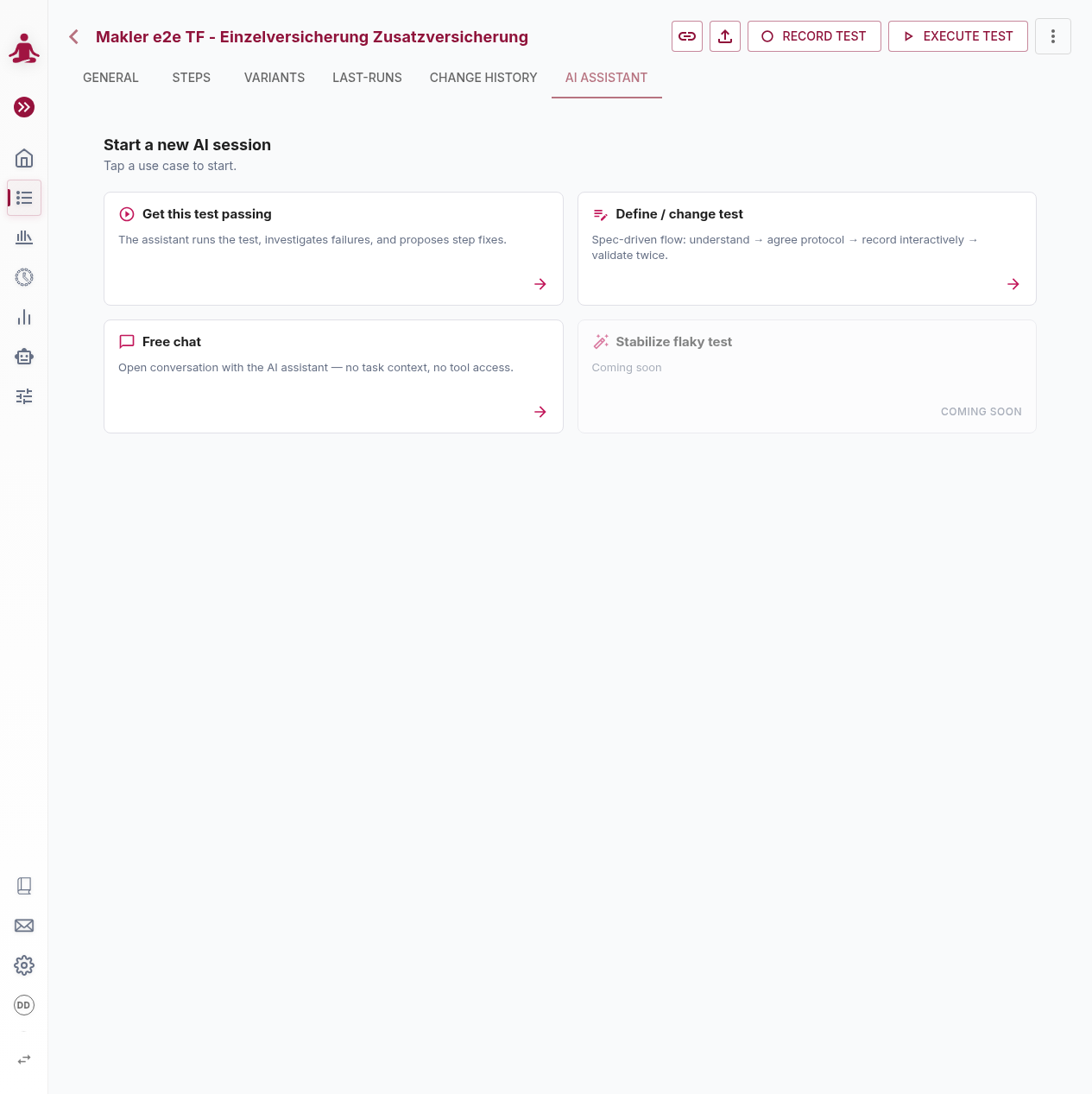
Open the AI Assistant tab on any saved test and pick one of the use-case cards on the start screen. Each card launches a session with a different system prompt and a different set of tools the assistant is allowed to use.
Sessions are saved per test: the chat appears in the AI Assistant tab of that test, can be resumed after closing the browser, and lists previous sessions you (or other users on the tenant) have had on the same test.
Use cases
Get this test passing
The assistant tries to make a failing test pass again with the smallest possible change.
- You provide: the test you are looking at, plus optionally a hint about what you think is wrong. No screenshots or logs needed — the assistant pulls them itself.
- What the assistant does: it runs the test, inspects logs and screenshots at the failing step, looks at the test definition, and proposes / applies targeted fixes — e.g. clarifying an ambiguous step description, adjusting a wait, fixing a misnamed element, or relaxing an overly strict assertion. It is explicitly instructed to preserve the test's intent (the what being tested), and to stop as soon as the test executes successfully.
- You get back: an updated test plus a transcript explaining what was found and changed. You can review the diff in the Change History tab.
- Good for: flaky or broken tests after a product change, quick root-cause analysis, getting unstuck on a step that "should work" but doesn't.
Define / change test
A spec-driven flow for authoring a brand-new test or substantially redefining an existing one. The card subtitle summarizes the four phases: understand → agree protocol → record interactively → validate twice.
In practice this maps to three guarded phases:
- Understand & align on the goal. The assistant reads the current test, summarizes what it found in one or two sentences, and asks any clarifying questions it needs. It will not start changing the test until you explicitly accept the protocol it proposes — this is the "agree protocol" step.
- Build interactively. The assistant starts an interactive execution of the test (pausing after each step so it can see the live page) and adds or edits steps one at a time. After each step it validates against the running application before moving on. Recorded steps use concrete values; parameterization happens after the test runs cleanly.
- Validate twice. Once the assistant believes it is done, it runs the test through two non-interactive executions in a row. Both must pass for the work to be considered done. If either fails, the assistant restarts the validation phase.
Good for: redefining acceptance criteria, large refactors of an existing test, building a new test by talking through the user journey rather than writing steps manually.
Free chat
A pure conversation with the assistant, with no tools and no test access. The assistant cannot run anything, read execution data, or change the test — it only answers questions.
Good for: asking how features work, getting prompt-writing tips, brainstorming a test strategy, troubleshooting general usage questions.
Stabilize flaky test (coming soon)
A planned mode focused on intermittent failures — identifying non-deterministic steps, adding guard conditions, and addressing environmental drift. The card on the start screen is shown with a Coming Soon badge until the mode is released.
What the assistant can see and do
| Capability | Get this test passing | Define / change test | Free chat |
|---|---|---|---|
| Read the bound test definition | ✓ | ✓ | — |
| Read execution history, logs and screenshots | ✓ | ✓ | — |
| Run the test (non-interactive) | ✓ | ✓ | — |
| Run the test interactively, step by step | — | ✓ | — |
| Edit individual steps | ✓ | ✓ | — |
| Add / remove steps, activities, parameters and variants | ✓ | ✓ | — |
The assistant is scoped to the bound test only — it cannot read other tests, executions on other tests, or anything outside the tenant.
Cost tracking
Every turn in a session is metered (input tokens, output tokens, cache hits). The running cost in USD is shown on the session — provided the configured chat model has pricing set up.
Configuration (administrator)
The AI Assistant is opt-in per tenant and requires an administrator to designate a chat model for the assistant. The setting lives next to your other AI model defaults in the tenant settings.
Required setting
- In Settings → AI-Models, configure a chat model that supports agentic, multi-turn tool use.
- In Settings → Tenant Settings, set the chat model you just configured as the default model for agents. This is a setting separate from the "default model for assertions / step identification / element identification" used by test execution.
If no default model for agents is configured, users cannot start AI Assistant sessions — the tab is unavailable and the API rejects session creation.
Recommended models
The assistant works best with high-capability reasoning models. Lower-cost models are not refused by the backend, but they tend to lose track of multi-step instructions, miss-classify tool results, and produce poor edit suggestions during long sessions. As a baseline we recommend:
| Vendor | Recommended baseline |
|---|---|
| Anthropic Claude | Claude Opus (current generation) |
| OpenAI / Azure OpenAI | GPT-5 or newer — surfaced as "Copilot" in the assistant |
"Copilot" is not a separate product or feature toggle. When the default model for agents is an OpenAI / Azure OpenAI model, the assistant uses the Copilot SDK under the hood and surfaces as Copilot. When the default model is an Anthropic Claude model, the assistant uses the Claude Agent SDK. From the user's perspective the tab and the four use cases look the same either way.
You can keep cheaper models configured for assertions and element identification (so that day-to-day test execution stays affordable) while reserving the expensive reasoning model specifically for the AI Assistant.
Failure mode if no compatible model is configured
If the default model for agents is missing, users that open the AI Assistant tab will not be able to start a session — the use-case cards will be inactive or the start screen will show a configuration message. The administrator must configure the model in tenant settings before the assistant becomes available.
Sessions and resuming
- Sessions are saved per test. A test can accumulate many sessions over its lifetime.
- A session can be resumed later: the assistant rewinds to the previous state and the conversation continues.
- Two users on the same tenant can have parallel sessions on the same test, but doing so is risky in Get this test passing and Define / change test mode because both sessions can edit the same test. Coordinate offline, or use sessions sequentially.
Permissions
- Anyone with access to the tenant and the test can start an AI Assistant session.
- Editing tests through the assistant requires edit rights on the tenant — the same rights you need to save changes manually.
- Product administrators can view (but not necessarily resume) sessions created by other users.
Limitations and good practices
- Acceptance gate in Define / change test. The assistant will not start changing your test until you explicitly accept its proposed protocol in chat. This is by design — it prevents the assistant from going off on a tangent that has to be undone afterwards.
- One step at a time during interactive recording. In Phase 2 of Define / change test, the assistant adds one step, verifies it on the live page, and only then moves to the next. Asking it to batch-add many steps in one turn is discouraged and will be slower, not faster.
- Concrete values first, parameters later. When the assistant records a step it uses real values (e.g.
Type "alice" into the username field). Parameterization with[[…]]placeholders happens after the test is running green — converting working tests into data-driven ones rather than the reverse. - No hard cost ceiling per session. Sessions run until you cancel them, the test passes, or operational limits are hit. Keep an eye on the session cost indicator on long debugging sessions.
- No diff / revert. The assistant changes the test in place. Use the Change History tab to review what was modified — but note that Change History is read-only and cannot roll changes back.
- Free chat is intentionally tool-less. If you want the assistant to read or change the test, pick one of the other two modes — Free chat will politely refuse to do so.
- Bound to one test. A session sees the test it was started from and its execution history, nothing else. To work on a different test, start a new session in that test's AI Assistant tab.