Application Settings
Application Settings are per-application defaults that msg.ZenTestAI applies whenever a test navigates to a URL covered by the entry. They are how you tell the platform "for this application, behave like this" without having to repeat the same configuration in every test step.
Typical use cases:
- different default timeouts for a slow application,
- enhanced AI instructions specific to a page or product (e.g. "open the value help when the user asks for a search"),
- automatically pressing enter after typing on a search-driven page,
- disabling animations on a page with constant background motion,
- routing test traffic through a corporate proxy.
Each entry is matched by host plus an optional path. When several entries could apply, the entry with the most specific path prefix wins. For example, with two entries www.wikipedia.de and www.wikipedia.de/articles:
https://www.wikipedia.de/automationmatcheswww.wikipedia.de,https://www.wikipedia.de/articlesmatcheswww.wikipedia.de/articles.
The list page
The list page shows all entries configured for the tenant. The single Application column shows the title (bold) and the host name beneath it. The search box filters by both title and host name. Each row has two actions:
- Copy — duplicate the entry as a starting point for a similar application.
- Delete — permanently remove the entry.
The detail editor
A Usage References button in the editor header lists every test that currently uses this host profile.
Each entry opens into a tabbed editor with six tabs, in this order:
| Tab | What you configure here |
|---|---|
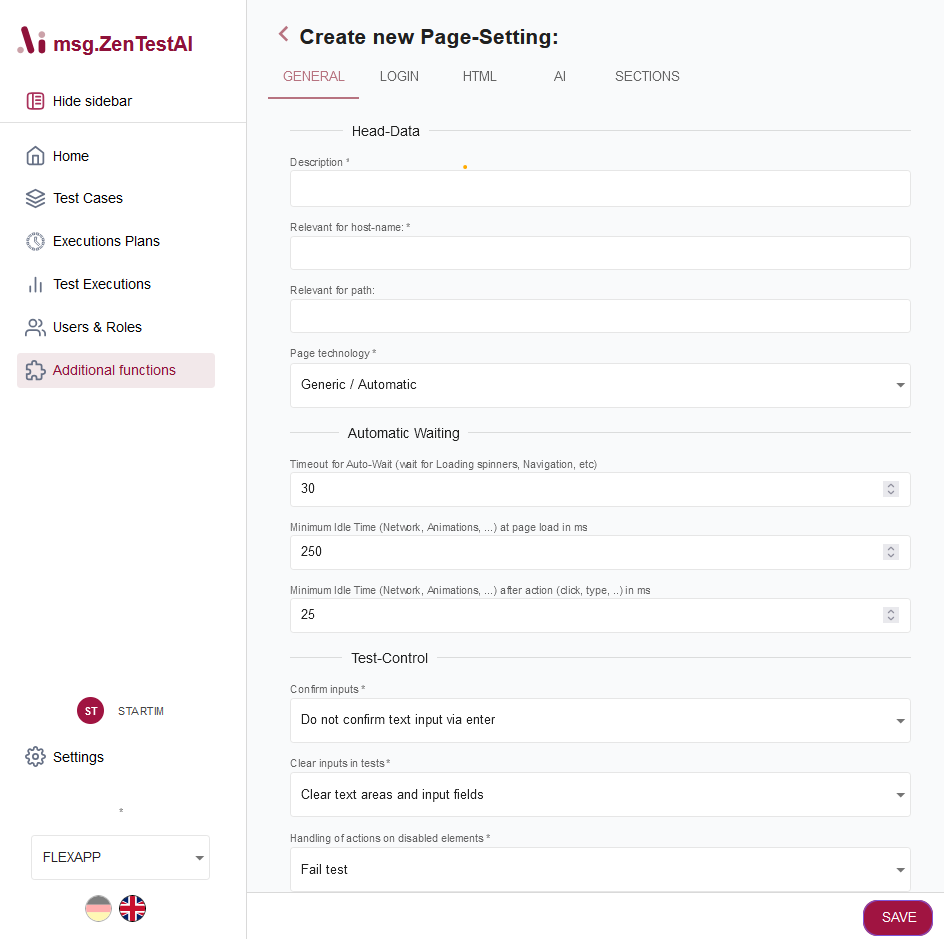
| General | Where the entry applies (host + path), description, and the application's page technology. |
| Test-Control | Default action behaviour: waiting, confirming inputs, ads, iframes, virtual cursor. |
| Browser | Browser-level behaviour and page analysis (DOM ignores, CSS hide selectors, animations). |
| Login | Authentication detection, reuse, custom logout script, extra HTTP headers. |
| AI | Additional instructions for each of the AI agents that interpret your steps. |
| Proxy | Browser proxy configuration, with optional per-domain overrides. |
General
| Field | Description |
|---|---|
| Description | Free text. Required — used to identify the entry in lists and selectors. |
| Host | The host the entry applies to (e.g. www.wikipedia.de). Required. |
| Path | Optional URL path. Together with the host, this controls which URLs the entry matches (longest path prefix wins). |
| Page Technology | Hint about the underlying frontend technology so the AI agents can pick the right strategies. Options: Generic / Automatic, SAP Fiori Elements / UI5, SAP WebDynpro, SAP WebGui. Defaults to Automatic. |
Test-Control
Defaults that govern how the AI agents act on the page. You can always override any of these per step by being explicit in the prompt — these are only the defaults that apply when the step prompt doesn't say otherwise.
| Field | Description | Default |
|---|---|---|
| Timeout for Auto-Wait | Maximum time msg.ZenTestAI waits for the page to settle before continuing — see Automatic Waiting. | 30 s |
| Confirm inputs | Whether to automatically press enter after typing. Two values: Do not confirm text input via enter / Confirm text input via enter. | Do not confirm |
| Handling of invisible input fields | What to do when the AI needs to type into a field that is not directly typeable. Options: Double click on the field before action, Click on the field before action, Focus the field before action, Only type the value in visible input fields (skip otherwise). | Click on the field before action |
| Handling of Advertisement | Allow Ads (default — interact normally) or Block Ads (the test ignores advertisement containers). | Allow Ads |
| Handling of iframes | System Default, No iFrames (most performant), All iFrames are accessed, or iFrames are accessed by Host. The last option reveals an extra text field where you list the iframe hosts (comma-separated) you want to allow. | No iFrames (most performant) |
| Show virtual cursor during execution | Render a virtual cursor so users watching a recording can follow what the agent is doing. | off |
Browser
The Browser tab has two sub-sections — Browser Behavior and Page Analysis.
Browser Behavior
| Field | Description | Default |
|---|---|---|
| Disable CORS Checks (Cross Origin Resource Sharing) | Disable browser CORS checks for the application — useful for internal apps that can't be accessed through normal cross-origin rules during testing. | off |
| Send authorization header (Basic Auth) only for start domain | If you log in via browser Basic Auth, restrict that header to the start domain rather than sending it to every frame and request. Recommended whenever the test interacts with domains that aren't yours. | off (sent to all frames) |
| Reuse browser cache between test executions | Keep the browser cache populated across test runs. Useful for performance tests where a warm cache reflects real-world behaviour. | off |
| Override page font family | Force a specific font to be used by the page during the test. Options include Default (no font override), OCR-A, Noto Sans / Mono, DejaVu Sans / Mono, Liberation Sans / Mono. Useful for screenshot-based assertions and OCR comparisons. | Default |
Page Analysis
These settings help the AI focus on what matters by hiding noise on the page. All list fields accept comma- or semicolon-separated values.
Hiding non-relevant elements is especially useful when the page contains dynamic attributes or animations that change with every load — they hurt the runner's cache hit ratio if they're not ignored.
| Field | Description |
|---|---|
| Ignore DOM tags | DOM tags to drop from element analysis. Example: noscript, script, style. |
| Ignore DOM attributes | Attribute names to drop. Example: data-qa, data-testid. |
| Ignore DOM classes | CSS classes to drop. |
| CSS selectors to hide | Semicolon-separated CSS selectors of elements that should be visually hidden on the page (e.g. cookie banners, support chat widgets). |
| Do not wait for animations | Ignore animations when judging whether the page is idle — useful for pages with permanently looping animations in the background. |
| CSS selectors to ignore animations | Visible when Do not wait for animations is on. Restricts the rule to specific elements via semicolon-separated CSS selectors. |
Login
Use this tab to give msg.ZenTestAI extra information about how the application's authentication works. For background, see Login Flow.
| Field | Description |
|---|---|
| XPath: Detect if authentication was successful | Optional XPath that, when present on the page, confirms the user is logged in. By default msg.ZenTestAI uses heuristics to detect a successful login; provide an XPath when those heuristics fail. |
| Reuse authentication: Mode | Toggle. When on, msg.ZenTestAI shares cookies between subsequent test runs in an execution plan so the login step doesn't need to repeat every time. |
| Logout Script | Optional reference to a saved script that is run to log the user out — useful when the application has no clear logout UI or has multiple steps. |
Additional Header Fields
A collapsible table where you can inject custom HTTP headers for specific hosts. Each row defines:
- Host Name — the host the header should be attached to.
- Header Name — auto-completes the most common HTTP headers (
Authorization,X-CSRF-Token, …). - Header Value — the value to send. For
Authorization: Basic …headers there is a helper button that base64-encodes a username/password for you.
Use cases: passing API keys for tests against APIs that sit alongside the UI, attaching tenant or environment headers required by your gateway, or injecting a Basic Auth header for protected internal sites.
AI
In this tab you can extend the system prompts sent to msg.ZenTestAI's AI agents so they get extra context about the application under test. Provide concrete instructions ("if the user clicks Save, also confirm the dialog that appears"), domain vocabulary ("PO means purchase order"), or page-specific quirks.
The agents you can enhance:
| Agent | Used for |
|---|---|
| Step-Agent | Translates the natural-language step description into a concrete sequence of actions. Add hints like "the value help opens the lookup dialog". |
| Login-Agent | Drives the login flow. Add hints like "the user is logged in once the avatar in the top-right is visible" or "accept the cookie banner first". |
| XPath-Agent | Identifies elements on the page. Add hints like "every input field has a data-testid attribute". |
| Assertions-Agent | Validates assertions made in test steps. Add hints like "the application returns localized error messages — match by error code, not text". |
| Agentic AI | Newer, fully agentic mode of operation. Use this to influence autonomous browser interactions across all test steps when running the agentic flow. |
Proxy
Configure how the browser reaches the application through a proxy.
Global proxy
| Field | Description |
|---|---|
| Browser-Proxy | Use System Default, Do not use a proxy, or Use a Proxy. The last option reveals the URL / user / password fields below. |
| Proxy-URL | The proxy server URL (visible only when Use a Proxy is selected). |
| Proxy Username / Password | Optional proxy credentials (visible only when Use a Proxy is selected). |
Additional proxies
A table-driven section where you can override the global setting per domain. Each row binds a domain pattern to a proxy mode and credentials. Use this when most traffic should go through one proxy, but specific systems require a different routing.
Test Connection
Once the entry has been saved, the Test Connection button at the bottom of the Proxy tab opens a network-trace dialog so you can verify that the configured proxy actually works against the configured host. The button is disabled until the entry has been saved at least once.